
Tag Archives: Raspberry Pi 5

AI on the Edge LESSON 29: Improved Proportional Object Tracking with Pan Tilt Camera

AI on the Edge LESSON 29: Improved Proportional Object Tracking with Pan Tilt Camera

Hey everyone, Paul McWhorter here from TopTechBoy.com. Welcome back to our channel, where we learn to build real, intelligent systems on edge hardware. Go ahead and grab yourself a nice hot cup of coffee or a big glass of iced tea, because today we are going to completely revolutionize the way our robotic pan-tilt camera interacts with the physical world.

In Lesson 28, we successfully closed the loop. We got our camera to physically move and track an object using the error signal calculated from our OpenCV bounding box. It worked, but let’s be honest with ourselves: it was clunky. It was a crude, incremental system that moved the camera by exactly one lazy degree at a time, regardless of whether the target was right next to the crosshairs or flying across the room. It was jerky, it hunted back and forth, and it just wasn’t elegant old-school engineering.

Today, we are throwing away that clunky incremental logic and replacing it with something beautiful: Proportional Control.

The Problem with Lazy Incremental Steps

Before we fix our control loop, we need to understand exactly why our previous system struggled. In our last script, we used conditional statements to see if the error was positive or negative, and then adjusted our angles by a fixed step of 1 or -1.

This created two major engineering flaws:

  • Lagging on Large Errors: If you suddenly jerked the object 400 pixels away from the center, the camera would take forever to catch up because it could only step at a constant speed of one degree per loop iteration.

  • Hunting and Jitter on Small Errors: When the object finally got close to the center, the camera would overshoot by a full degree, trip the opposite condition, and step back. It would constantly “hunt” back and forth across the target, buzzing your hardware to pieces.

The Elegance of Proportional Control

In real-world automation, we don’t use rigid, conditional step-programming to move hardware. We use mathematics. We want the camera’s reaction to be completely proportional to the size of the mistake it is trying to correct.

If the object is a massive distance away from the center crosshairs, we want the servo to take a massive, aggressive leap to catch up instantly. As the object gets closer and closer to the center, we want the camera to automatically slow down and gently glide into place. When the error drops to zero, the physical adjustment should naturally drop to zero.

The magic of this approach is that it allows us to completely eliminate the bulky conditional statements and artificial deadbands we wrote last time. The algebra naturally handles the direction and magnitude of the movement.

Breaking Down the Math and Logic

To achieve this fluid motion, we take our raw error signal—the distance in pixels between our frame center and the object center—and apply a scaling factor, known in control theory as Gain.

In this updated system design, we take our error and divide it down. Specifically, we divide the pixel error by 50, and then split that in half by dividing by 2. Mathematically, this means we are scaling our pixel error down by a factor of 100.

  • If your object is 300 pixels off-center, the math calculates an instantaneous adjustment of 3 degrees, quickly snapping the camera toward the target.

  • If the object is only 10 pixels off-center, the adjustment becomes a tiny fraction of a degree (0.1), smoothly stabilizing the camera track.

Precision Tracking with Floating-Point Variables

Because we are dividing our pixel error down by 100, our angular adjustments will almost always be fractional decimals rather than clean integers. If we tried to store these angles as standard integers, our program would truncate those decimals, completely throwing away our precise micro-adjustments and causing the camera to stall out.

To make this system work perfectly, we maintain our accumulation variables as high-precision floating-point numbers. The script constantly adds and subtracts these fractional updates over time behind the scenes. We only cast the final calculated angle to a clean, rounded integer at the absolute last microsecond right as we pass the position command to the physical servo motors.

Visual Tuning and Smooth Performance

You will notice a massive visual upgrade when running this refined loop. To match our new high-precision math, we tighten up our tracking reticle overlay, shrinking our target circle down from a radius of 40 to a crisp 30 pixels. We also change our dynamic bounding box to a bright, vibrant yellow to make our tracking visually pop on screen.

When you fire up this loop and wave your object around, you will see a night-and-day difference compared to last week. The lazy, robotic stutter is completely gone. The pan-tilt mount tracks with an organic, fluid motion, actively accelerating and decelerating to mirror your movements perfectly.


AI on the Edge LESSON 28: Use Pan Tilt Camera to Track Object of Interest in OpenCV

Hey everyone, Paul McWhorter here from TopTechBoy.com. Welcome back to our channel, where we don’t just write abstract software—we build real, physical, intelligent machines. Go ahead and grab yourself a nice hot cup of coffee or a big glass of iced tea, because today we are closing the loop between the digital world of computer vision and the physical world of robotics.

In our last lesson, we successfully taught OpenCV how to find a specific color, isolate the largest shape, and draw a beautiful green bounding box around it. That was great, but it had a massive limitation: if your object moved off the edge of the frame, it was gone forever. The camera just sat there, blind and helpless.

Today, we change that. We are taking that tracking data from our code and using it to command a physical pan-tilt mechanism powered by two servos on our Fusion Hat. By the time we finish today, your camera will physically turn, tilt, and hunt down your object, keeping it locked dead center in the middle of your video feed.

The Big Leap: Closing the Loop

What we are building today is a foundational concept in automation engineering known as a feedback control loop.

Up until now, your camera was an open-loop observer. It saw things, but it couldn’t react physically. To make an autonomous tracking system, we need to implement a simple pipeline:

  1. Sense: The camera captures the image frame.

  2. Think: OpenCV finds the target object and calculates its position.

  3. Act: The script commands the hardware servos to move the camera mount to correct any positioning errors.

The Mathematics of the Target Error

To make a camera track an object, we have to define what “perfect tracking” looks like to a computer. Perfect tracking means the center of our tracked object is sitting exactly at the center of our video frame.

Because we are running our camera at a crisp resolution of 1280×720, the mathematical center of our universe is fixed. We calculate our frame’s horizontal and vertical centers by dividing our dimensions in half. This gives us a permanent anchor point right in the middle of our grid.

When an object appears on screen, our contour detection gives us its bounding box. We calculate the exact center of that box by taking its starting coordinate and adding half of its width and height. Now we have two sets of coordinates:

  • Where we want the object to be (The Frame Center).

  • Where the object actually is (The Box Center).

The difference between where the object is and where it belongs is called the Error Signal. We calculate an X Error and a Y Error by simply subtracting the frame center from the box center.

Managing Jitter with a Control Deadband

If our object is perfectly centered, our Error is zero. If the object moves to the right, the X Error becomes a positive number. If it moves to the left, it becomes a negative number. The same logic applies vertically to our Y Error.

Now, you might think we should tell the servos to move every single time the Error is anything other than zero. But remember what we learned about camera sensors: pixels dance, light fluctuates, and your calculations will always have a tiny amount of natural mathematical noise. If you try to correct for every single fractional pixel change, your servos will constantly buzz, twitch, and jitter themselves to death.

To fix this, we implement an engineering safety margin called a Deadband. In this lesson, we establish a 40-pixel safety zone around the center of the frame.

  • If the object is within 40 pixels of the center, the error is too small to care about, and we tell the servos to sit perfectly still.

  • The moment the object drifts outside that 40-pixel window, our control logic triggers.

If the X Error is greater than 40, we decrement our pan angle by one degree to turn the camera toward the target, pass that new angle to our servo handler, and pause for a tiny fraction of a second (20 milliseconds) to give the mechanical gears time to physically move. If it’s negative, we increment the angle. We apply the exact same behavioral logic to our tilt servo using the Y Error.

Visualizing the System Matrix

To help us calibrate and troubleshoot this system, we overlay clear visual indicators directly onto our live video feed:

  • The Reticle: We draw a solid blue dot directly at our fixed frame center. This acts as our tracking crosshair.

  • The Target: We draw a large red circle directly over the center of our moving object’s bounding box.

When your system is working properly, you can physically watch the machine think. As you move an object around, the red circle moves away from the blue dot, the error threshold trips, the servos kick in, and the camera moves until the red circle swallows the blue dot once again.

Your Homework Assignment

You guys know the drill: watching me build a tracking rig doesn’t make you an automation engineer. You have to write the logic, feel the hardware move, and tune it yourself.

Here is your homework challenge for Lesson 28: Right now, our tracking logic uses what is called an incremental step controller. No matter how far away the object is from the center, the camera always moves at the exact same speed—one lazy degree at a time. If you move your target slowly, the camera keeps up. If you snap your target quickly across the room, the camera falls behind and loses it because it can’t accelerate.

Your assignment is to upgrade this control loop. Instead of stepping by a hardcoded value of 1, I want you to make the servo adjustment step proportional to the size of the error. If the object is close to the center, it should move gently by a fraction of a degree. If the object takes off like a rocket and creates a massive error signal, the camera should aggressively throw the servos open to catch up instantly.

Get your proportional tracking loops tuned, shoot a video showing your camera tracking a fast-moving object smoothly, upload it to YouTube, and share your link down in the comments below. See you guys in the next lesson!

AI on the Edge LESSON 26: Understanding the HSV Color Space in OpenCV

Hey guys, welcome back to the channel. If you’ve been following along, you know we’ve been pushing our hardware absolutely down into the dirt. We’ve been running large language models right on the edge, pushing our boards hot and heavy until the silicon is screaming and the thermal throttling flags are popping up all over the place.

But today, we are stepping away from the heavy-compute server terminals, and we are getting back to our roots: Real-Time Computer Vision and Embedded Control. In our previous lessons, we learned how to hook up our high-speed camera, capture raw frames, and interact with individual pixels using standard RGB/BGR math. But today, we are going to look under the hood of a completely different way of representing color: The HSV Color Space (Hue, Saturation, Value).

If you try to track objects or isolate specific colors in the traditional RGB world, you are going to pull your hair out. The moment a shadow hits your object or the room lighting changes, your Red, Green, and Blue values completely collapse. By shifting our mathematics into the HSV space, we can lock onto a color’s pure identity regardless of whether it is sitting under a bright laboratory spotlight or a dim shadow.

Not only are we going to capture and process these video streams at a smooth-as-silk 60 frames per second, but we are also going to translate that raw visual math directly into the physical world. We are using our trusty SunFounder Fusion HAT+ to dynamically pulse an external RGB LED, matching its brightness and color hue perfectly to whatever pixel your mouse is clicking on in real-time.

Let’s look at the blueprint to make this happen.

The Complete Python Code

Here is the clean, un-guardrailed Python script for today’s lesson. Paste this directly into your local terminal workspace. No bloated libraries, no unnecessary frameworks—just pure, deliberate engineering.

Under the Hood: How the Code Works

1. The Real-Time Telemetry Smooth Filter

Look closely at how we calculate our frames-per-second metric inside the main processing loop:

If you simply print out the raw math of 1 / deltaT, your numbers on the screen are going to jump all over the place like a wild animal. By applying a 95% historical weight and a 5% instant weight, we create a low-pass software filter that smoothly tracks our true hardware operational speed without erratic layout jitter.

2. The Mouse Vector and BGR Array Sequence

When your mouse triggers an event over the window, OpenCV passes us the standard coordinate pairs (x, y). But remember: inside a NumPy data structure, images are structured as Rows first, then Columns. That means when you slice into your image array to read a pixel’s color values, you must pass the parameters as frame[y, x]. If you pass it as [x, y], your program is going to index out of bounds and crash hard.

Furthermore, always remember that OpenCV handles colors in a BGR (Blue, Green, Red) sequence, not RGB. When we extract those elements, they unpack straight into valB, valG, valR.

3. Masking and Bitwise Isolation

To lock onto our target color, we use cv2.inRange() to look at our HSV frame and check it against our lower constraint (LC) and upper constraint (UC). This generates a Mask—a pure black-and-white image where pixels within the target color space are completely white (255), and everything else is completely black (0).

By taking that mask and running a fast bitwise operation

We force the computer to evaluate every single pixel. If the mask is zero, the output is blacked out. If the mask is active, the original, rich color information passes through perfectly, isolating our target object from the background noise instantly.

Get your circuits wired up, get this script running on your machine, and let me know in the comments section below what kind of performance numbers you are pulling on your local workbench. I’ll catch you guys in the next lesson!

Remember we are still setting the LED color to the color that cursor is pointing at. This is the circuit for connecting the RGB LED.
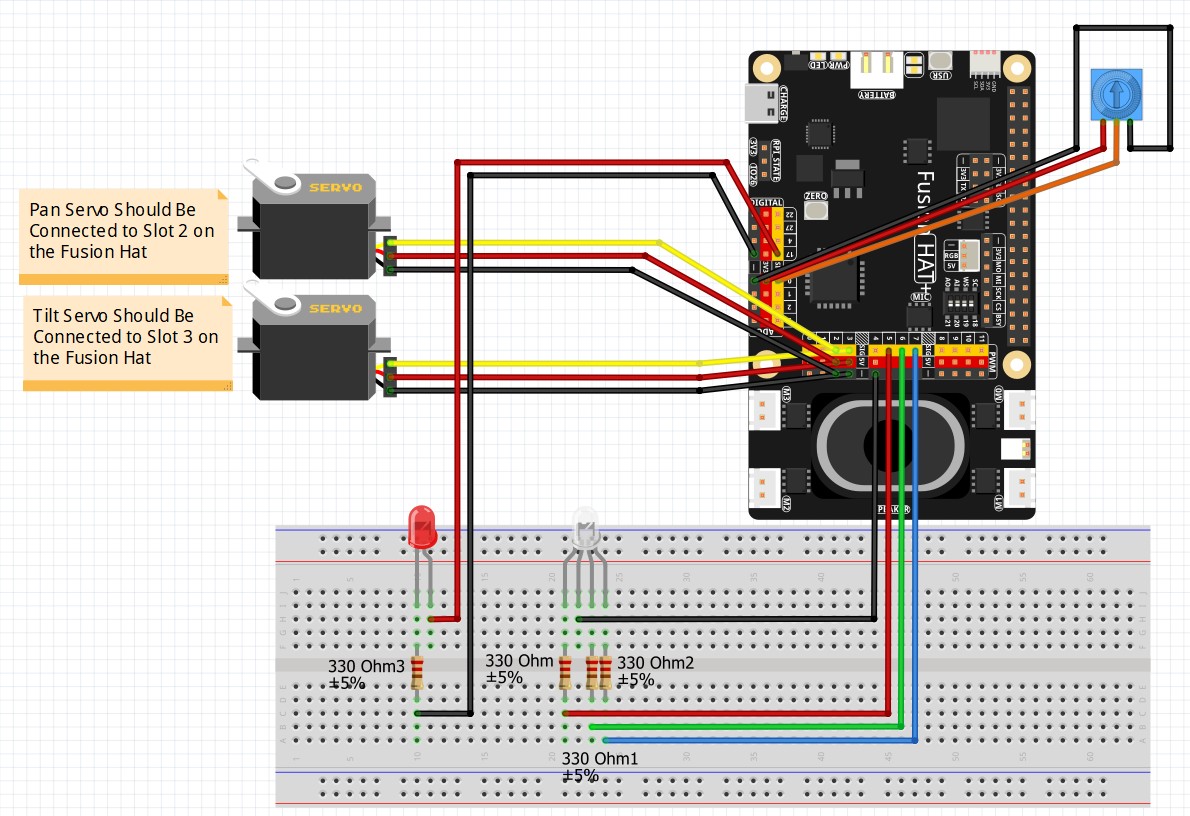
Fusion Hat Circuit Diagram
This is the circuit we will use moving forward in the class

AI on the Edge LESSON 20: Resizing, Moving, Converting and Tiling Video frames in OpenCV

Welcome back to the AI on the Edge class series! In this lesson, we are diving deep into some of the most critical foundational skills you need when working with video streams on edge devices: Resizing, Moving, Converting, and Tiling video frames using OpenCV.

When you are developing real-world AI applications on the edge, you rarely just display a single camera feed. You often need to manipulate frames to feed them into your AI models, look at grayscale versions for edge detection, or arrange multiple windows on your desktop neatly so you can monitor your data visually.

If you want to follow along exactly as we do in the video, make sure you have your Raspberry Pi 5 set up with your Camera Module.

What We Cover in This Lesson

  • Fixed FPS Estimation: We continue using our robust low-pass filter formula to track smooth, non-jittery frames-per-second data directly on the video frame.

  • Creating Named Windows: Understanding how cv2.namedWindow() combined with cv2.WINDOW_GUI_NORMAL gives you absolute programmatic control over the placement of your displays.

  • Resizing & Moving Windows: How to accurately position multiple OpenCV windows on your screen using specific coordinates while accounting for operating system taskbars and window decorative margins.

  • Frame Manipulation: Using cv2.resize() to scale down video frames and cv2.cvtColor() to transform the color space from BGR to grayscale.

  • Window Tiling: Arranging a main camera view, a scaled-down color view, and a scaled-down grayscale view in a perfect grid layout on your desktop.

The Complete Lesson 20 Code

Below is the complete Python code we developed during this lesson. It sets up your hardware camera stream, calculates running performance metrics, processes three distinct variations of the video feed, and tiles them cleanly on your screen.


AI on the Edge LESSON 19: Create a Bouncing Box in OpenCV On Raspberry Pi

Hey everyone, Paul McWhorter here!

Welcome back to the AI on the Edge series! In today’s lesson, we’re going to have some fun and take our first real steps into computer vision animation.

We’re going to create a colorful box that bounces around the screen like an old-school screensaver, while displaying a live FPS counter so we can see how well our Raspberry Pi is handling the workload.

Even though it looks simple, this project teaches you several foundational skills you’ll use again and again in computer vision:

  • Working with coordinates and drawing shapes in OpenCV
  • Creating smooth real-time animation
  • Detecting boundaries and reversing direction
  • Calculating and displaying live FPS

These are the same techniques you’ll build on later when we start doing object tracking, collision detection, and more advanced AI vision projects.


What You Learned in This Lesson

  • How to draw filled rectangles on a live video stream
  • How to move objects smoothly frame by frame
  • How to make objects “bounce” realistically off screen edges
  • A clean method for calculating and displaying FPS
  • Using variables to easily control size, position, speed, and color

This bouncing box may look basic, but once you understand how to do this, you can create all kinds of animated graphics that interact with what the camera sees.


Pro Tip: After you get it working, play around with the speed, box size, and colors. Try making multiple bouncing boxes with different speeds and directions — it’s a great way to experiment!


Ready for more? In the next lesson, we’re going to kick things up a notch and start working with multiple objects and more complex interactions.

Keep building, keep learning, and I’ll see you in the next video!

— Paul McWhorter

For your convenience, this is the code we developed in the video.