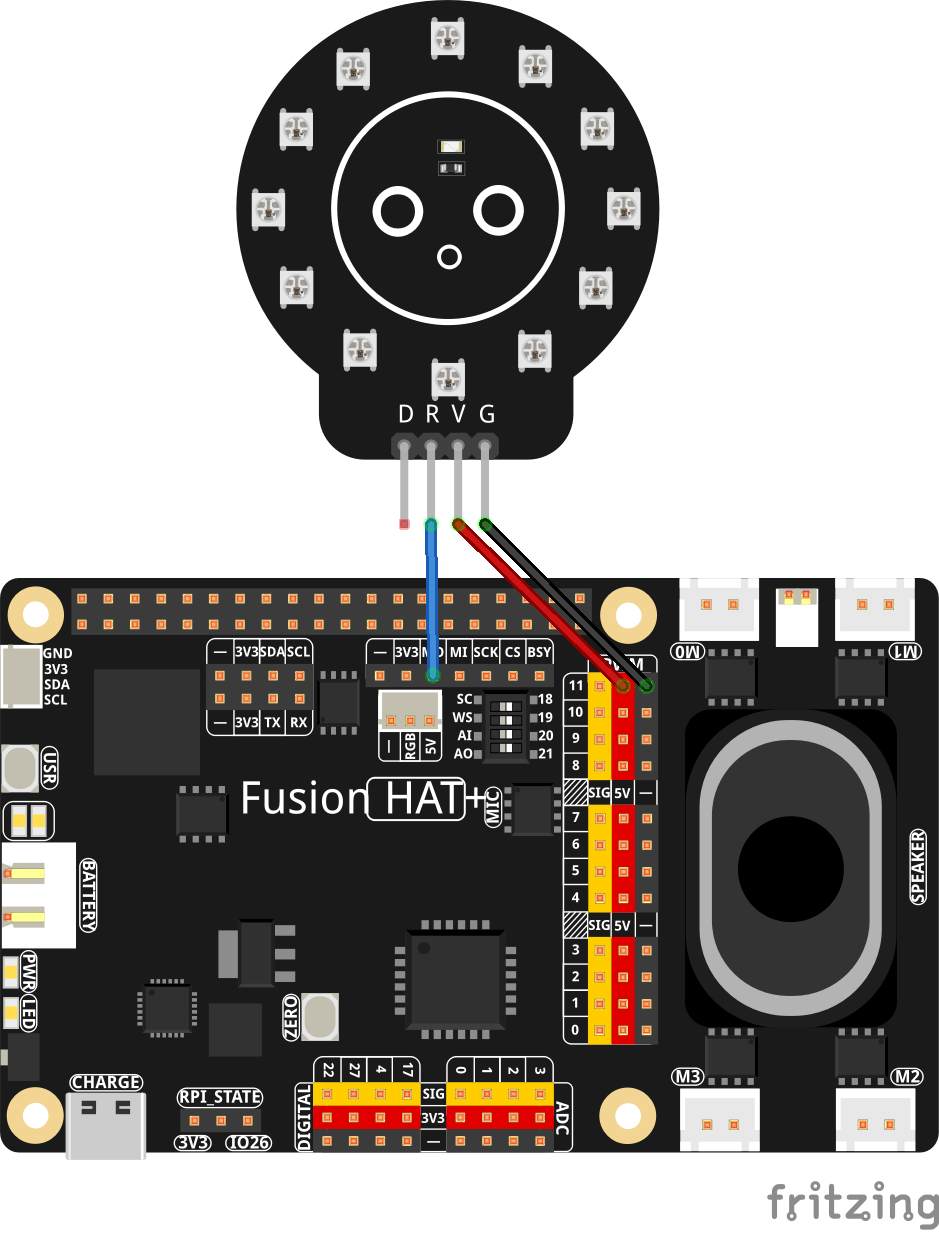
Welcome back, everyone! In today’s class, AI on the Edge LESSON 51: Gesture Control of NeoPixel Ring, we are bridging the gap between computer vision and physical hardware in a big way. Up until now, we have spent a lot of time tracking hands, plotting 3D landmarks, and rendering graphical user interfaces directly onto our camera feeds. But today, we take those virtual interactions and project them out into the real physical world using a 12-LED NeoPixel ring driven over SPI by our Raspberry Pi 5.
The core concept of this lesson is creating an intuitive, spatial gesture interface. Imagine looking at your monitor display where a graphical representation of a circular LED ring is overlaid onto your live camera feed. By extending your hand and placing your index finger tip over any of the twelve virtual LED nodes on screen, the system detects your hover position. When you pinch your thumb and index finger together, the program registers a toggle event, turning the corresponding physical LED on or off on the actual hardware ring sitting on your workbench.
To make this work reliably without wild bouncing or rapid flickering, we dive deep into the mechanics of gesture latching and debouncing. When a student first attempts spatial tracking, holding a pinch gesture over a target often causes the state to flip back and forth dozens of times per second. In this lesson, we implement a stateful boolean latch flag that locks down the trigger state the moment a pinch is registered. The algorithm strictly requires you to release the pinch—breaking contact between your thumb and index finger—before it will accept another command. This simple state machine logic is essential for turning noisy computer vision inputs into rock-solid physical control interfaces.
Beyond individual pixel control, we also construct a dynamic UI Mode Selection Panel on the right side of the screen. By hovering over the panel buttons and executing the same pinch gesture, you can cycle through five distinct lighting animation profiles in real time:
- Static Mode: Displays fixed, custom-assigned palette colors for each active LED node.
- Rainbow Mode: Distributes a static 360-degree color wheel spectrum across all twelve positions using HSV-to-RGB conversion algorithms.
- Pulsate Mode: Modulates the physical brightness using a squared sine wave math function to guarantee a true black-floor fade on turned-on pixels.
- Blink Mode: Synchronizes an on/off strobe animation derived from live system timestamps.
- Running Rainbow Mode: Dynamically rotates the active hue spectrum around the ring by stepping the color offset frame-by-frame.
We handle all of this frame rate processing seamlessly using high-speed SPI bus communications through neopixel_spi and direct frame acquisition via Picamera2. By keeping auto-write disabled until all mathematical animation steps and hand-tracking calculations are completed for a given frame, we push smooth, flicker-free updates out to both the physical hardware and the OpenCV display overlay simultaneously.
Work through the complete Python script provided on this page, load it onto your Pi, and assemble your hardware circuit. Pay close attention to how the spatial math maps coordinates from normalized MediaPipe landmark spaces directly into circular screen coordinates using polar angle formulas. Grab your components, fire up your IDE, and let’s get building!
|
1 2 3 4 5 6 7 8 9 10 11 12 13 14 15 16 17 18 19 20 21 22 23 24 25 26 27 28 29 30 31 32 33 34 35 36 37 38 39 40 41 42 43 44 45 46 47 48 49 50 51 52 53 54 55 56 57 58 59 60 61 62 63 64 65 66 67 68 69 70 71 72 73 74 75 76 77 78 79 80 81 82 83 84 85 86 87 88 89 90 91 92 93 94 95 96 97 98 99 100 101 102 103 104 105 106 107 108 109 110 111 112 113 114 115 116 117 118 119 120 121 122 123 124 125 126 127 128 129 130 131 132 133 134 135 136 137 138 139 140 141 142 143 144 145 146 147 148 149 150 151 152 153 154 155 156 157 158 159 160 161 162 163 164 165 166 167 168 169 170 171 172 173 174 175 176 177 178 179 180 181 182 183 184 185 186 187 188 189 190 191 192 193 194 195 196 197 198 199 200 201 202 203 204 205 206 207 208 209 210 211 212 213 214 215 216 217 218 219 220 221 222 223 224 225 226 227 228 229 230 231 232 233 234 235 236 237 238 239 240 241 242 243 244 245 246 247 248 249 250 251 252 253 254 255 256 257 258 259 260 261 262 263 264 265 266 267 268 269 270 271 272 273 274 275 276 277 278 279 280 281 282 283 284 285 286 287 288 289 290 291 292 293 294 295 296 297 298 299 300 301 302 303 304 305 306 307 308 309 310 311 312 313 314 315 316 317 318 319 320 321 322 323 324 325 326 327 328 329 330 331 332 333 334 335 336 337 338 339 340 341 342 343 344 345 346 347 348 349 350 351 352 353 354 355 356 357 358 359 360 361 362 363 364 365 366 367 368 369 370 371 372 373 374 375 376 377 378 379 380 381 382 383 384 385 386 387 388 389 390 391 392 393 394 395 396 397 398 399 400 401 402 |
# ==================================================================== # DISCLAIMER: # This code is provided as-is for educational and experimental # purposes only. The author makes no representations or warranties of # any kind concerning the safety, suitability, or accuracy of this # code. Use at your own risk. The author assumes no liability for any # damages, system failures, security breaches, or network issues # resulting from the use or implementation of this script. # ==================================================================== # Import required computer vision, system, math, and hardware libraries import cv2 import time import numpy as np import colorsys import board import neopixel_spi as neopixel from picamera2 import Picamera2 import mediapipe as mp # ============================================================================== # HARDWARE & NEOPIXEL INITIALIZATION # ============================================================================== # Initialize SPI communication bus for high-speed LED control spiBus = board.SPI() # Total number of physical LEDs in the circular NeoPixel ring ledCount = 12 # Color order setting required by NeoPixel hardware (Green-Red-Blue) pixelOrder = neopixel.GRB # Create the SPI NeoPixel strip object, disabling auto-write for manual updates ledStrip = neopixel.NeoPixel_SPI(spiBus, ledCount, pixel_order=pixelOrder, auto_write=False) # Clear any previous LED states by turning all physical pixels off initially ledStrip.fill(0) ledStrip.show() print("✅ NeoPixel initialized!") # Boolean array tracking the active power state (True = On / False = Off) for each LED ledStates = [False] * 12 # Array tracking the active RGB color for each physical LED to sync with screen drawing currentLedRgb = [(0, 0, 0)] * 12 # Static base RGB color mapping assigned to each individual LED index ledColors = [ (255, 0, 0), # LED 0: Red (0, 255, 0), # LED 1: Green (0, 0, 255), # LED 2: Blue (0, 255, 255), # LED 3: Cyan (255, 0, 255), # LED 4: Magenta (255, 255, 0), # LED 5: Yellow (255, 100, 0), # LED 6: Orange (128, 0, 255), # LED 7: Purple (0, 255, 128), # LED 8: Spring Green (255, 0, 128), # LED 9: Pink (128, 255, 0), # LED 10: Chartreuse (0, 128, 255) # LED 11: Light Blue ] # ============================================================================== # LIGHTING MODES & STATE TRACKING # ============================================================================== # Available animation profiles selectable from the UI panel modes = ["Static", "Rainbow", "Pulsate", "Blink", "Running Rainbow"] # Index tracker for the active lighting mode currentMode = 0 # Math phase tracker used for calculating brightness modulation in Pulsate mode pulsePhase = 0 # Degree offset tracker used for rotating hue spectrums in Rainbow modes rainbowOffset = 0 # Degree offset for frame-by-frame 1-degree hue increment runningHueOffset = 0 # ============================================================================== # DEBOUNCE & GESTURE LATCHING CONTROL FLAGS # ============================================================================== # Stateful latch flag to require full gesture release before accepting new toggles. # This prevents rapid re-triggering (blinking) when holding a pinch over a node. isGestureActive = False # ============================================================================== # PICAMERA2 & MEDIAPIPE HAND TRACKING SETUP # ============================================================================== # Instantiate PiCamera2 object targeting camera device 1 piCam = Picamera2(1) # Screen resolution settings matching camera stream aspect ratio frameWidth = 1280 frameHeight = 720 # Configure preview window resolution and color stream formatting piCam.preview_configuration.main.size = (frameWidth, frameHeight) piCam.preview_configuration.main.format = "RGB888" piCam.preview_configuration.controls.FrameRate = 60 piCam.preview_configuration.align() piCam.configure("preview") piCam.start() # Load MediaPipe hand detection module components mpHands = mp.solutions.hands handsDetector = mpHands.Hands( model_complexity=1, min_detection_confidence=0.7, min_tracking_confidence=0.7, max_num_hands=1 ) mpDraw = mp.solutions.drawing_utils # Visual overlay center coordinate and radius for rendering the circular LED ring centerX = frameWidth // 2 centerY = frameHeight // 2 ringRadius = 220 cv2.namedWindow("NeoPixel Ring Controller",cv2.WINDOW_GUI_NORMAL) cv2.moveWindow("NeoPixel Ring Controller",0,65) cv2.resizeWindow("NeoPixel Ring Controller",frameWidth,frameHeight) # ============================================================================== # MAIN APPLICATION LOOP # ============================================================================== while True: # Capture raw frame matrix from PiCamera stream frameData = piCam.capture_array() # Mirror preview display horizontally and vertically to match natural orientation frameData = cv2.flip(frameData, -1) frameData = cv2.flip(frameData, 1) # Convert image format from BGR to RGB required by MediaPipe rgbFrame = cv2.cvtColor(frameData, cv2.COLOR_BGR2RGB) # Execute hand keypoint extraction on the converted frame trackingResults = handsDetector.process(rgbFrame) # Create image copy dedicated for drawing visual UI overlays displayFrame = frameData.copy() # Capture current UNIX epoch timestamp for time-based animation calculations currentTime = time.time() # Flag tracking whether a valid action gesture occurred in the current frame gestureTriggeredThisFrame = False # Process hand gesture logic if hand landmarks are detected if trackingResults.multi_hand_landmarks: for handLandmarks in trackingResults.multi_hand_landmarks: # Draw skeletal connections over the detected hand on display image mpDraw.draw_landmarks(displayFrame, handLandmarks, mpHands.HAND_CONNECTIONS) # Extract full list of 3D spatial points for all key joints landmarksList = handLandmarks.landmark indexTipPoint = landmarksList[8] # Joint landmark index 8 (Index finger tip) thumbTipPoint = landmarksList[4] # Joint landmark index 4 (Thumb tip) # Map coordinates from normalized values (0-1) to pixel dimensions indexPixelX = int(indexTipPoint.x * frameWidth) indexPixelY = int(indexTipPoint.y * frameHeight) thumbPixelX = int(thumbTipPoint.x * frameWidth) thumbPixelY = int(thumbTipPoint.y * frameHeight) # Calculate Euclidean distance between index tip and thumb tip in pixels pinchDistance = np.hypot(indexPixelX - thumbPixelX, indexPixelY - thumbPixelY) # Check pointing interaction against every LED position along the circle for ledIdx in range(12): # Angle formula: Starts at +pi/2 (bottom) and rotates clockwise (- direction) polarAngle = (np.pi / 2) - ledIdx * (2 * np.pi / 12) # Derive 2D screen positions matching physical ring layout ledPixelX = int(centerX + ringRadius * np.cos(polarAngle)) ledPixelY = int(centerY + ringRadius * np.sin(polarAngle)) # Compute straight-line Euclidean distance between index finger and target LED pointDistance = np.hypot(indexPixelX - ledPixelX, indexPixelY - ledPixelY) # Determine if fingertip is hovering within interaction radius of an LED point (Relaxed to 60px) if pointDistance < 60: # Highlight active target LED with concentric indicator rings cv2.circle(displayFrame, (ledPixelX, ledPixelY), 38, (0, 255, 255), 6) cv2.circle(displayFrame, (ledPixelX, ledPixelY), 22, (255, 255, 100), -1) # Verify pinch condition (Relaxed to 55px threshold for easier detection) if pinchDistance < 55: gestureTriggeredThisFrame = True # Draw pinch visual feedback ring connecting index and thumb cv2.circle(displayFrame, (indexPixelX, indexPixelY), 15, (0, 255, 0), -1) # Execute state change only if the gesture was not already latched if not isGestureActive: # Invert boolean state for selected LED ledStates[ledIdx] = not ledStates[ledIdx] # Lock gesture activation state until user unpinches isGestureActive = True # Process UI mode panel interaction if pointing inside designated top-right screen area if indexPixelX > frameWidth - 280: if indexPixelY < 420: # Map vertical pixel coordinate directly to corresponding mode list index modeIndexChoice = (indexPixelY - 80) // 70 # Verify target index falls within valid bounds of the mode selection list if 0 <= modeIndexChoice < len(modes): # Verify pinch condition to confirm mode selection (Relaxed to 55px) if pinchDistance < 55: gestureTriggeredThisFrame = True # Draw pinch visual feedback ring connecting index and thumb cv2.circle(displayFrame, (indexPixelX, indexPixelY), 15, (0, 255, 0), -1) # Execute mode switch only if the gesture was not already latched if not isGestureActive: currentMode = modeIndexChoice # Lock gesture activation state until user unpinches isGestureActive = True # Reset latch flag when hand gesture is unpinched or moved off targets if not gestureTriggeredThisFrame: isGestureActive = False # ========================================================================== # DYNAMIC LIGHTING ANIMATION EFFECTS & HARDWARE COLOR UPDATES # ========================================================================== # MODE 0: Static colors assigned directly from preset ledColors palette if currentMode == 0: for ledIdx in range(12): if ledStates[ledIdx]: currentLedRgb[ledIdx] = ledColors[ledIdx] if not ledStates[ledIdx]: currentLedRgb[ledIdx] = (0, 0, 0) # MODE 1: Fixed rainbow distribution (Red at LED 0, stepping by 30 degrees, static) if currentMode == 1: for ledIdx in range(12): if ledStates[ledIdx]: calculatedHue = ledIdx * 30 # 360 degrees / 12 LEDs = 30 degrees per step redVal, greenVal, blueVal = [int(channel * 255) for channel in colorsys.hsv_to_rgb(calculatedHue / 360.0, 1, 1)] currentLedRgb[ledIdx] = (redVal, greenVal, blueVal) if not ledStates[ledIdx]: currentLedRgb[ledIdx] = (0, 0, 0) # MODE 2: Pulsating brightness modulation (squared sine wave for true black floor fade) if currentMode == 2: pulsePhase += 0.15 calculatedBrightness = ((np.sin(pulsePhase) + 1) / 2) ** 2 for ledIdx in range(12): if ledStates[ledIdx]: baseRed, baseGreen, baseBlue = ledColors[ledIdx] currentLedRgb[ledIdx] = ( int(baseRed * calculatedBrightness), int(baseGreen * calculatedBrightness), int(baseBlue * calculatedBrightness) ) if not ledStates[ledIdx]: currentLedRgb[ledIdx] = (0, 0, 0) # MODE 3: Blinking on/off light strobe animation if currentMode == 3: blinkToggleState = int(currentTime * 3) % 2 for ledIdx in range(12): if ledStates[ledIdx]: if blinkToggleState: currentLedRgb[ledIdx] = ledColors[ledIdx] if not blinkToggleState: currentLedRgb[ledIdx] = (0, 0, 0) if not ledStates[ledIdx]: currentLedRgb[ledIdx] = (0, 0, 0) # MODE 4: Evenly-spaced rainbow incrementing 1 degree per cycle if currentMode == 4: for ledIdx in range(12): if ledStates[ledIdx]: # Start at evenly spaced base angle (30 deg apart) and add 1-degree step offset calculatedHue = (ledIdx * 30 + runningHueOffset) % 360 # Convert normalized float hue (0.0 to 1.0) to RGB rFloat, gFloat, bFloat = colorsys.hsv_to_rgb(calculatedHue / 360.0, 1.0, 1.0) currentLedRgb[ledIdx] = ( int(round(rFloat * 255)), int(round(gFloat * 255)), int(round(bFloat * 255)) ) if not ledStates[ledIdx]: currentLedRgb[ledIdx] = (0, 0, 0) # Increment offset by exactly 1 degree each frame cycle, wrapping 360 back to 0 runningHueOffset = (runningHueOffset + 2) % 360 # Push all updated mode colors out to physical NeoPixel hardware strip for ledIdx in range(12): ledStrip[ledIdx] = currentLedRgb[ledIdx] ledStrip.show() # ========================================================================== # ON-SCREEN GRAPHICAL RENDERING (LED RING MATCHING PHYSICAL HARDWARE) # ========================================================================== for ledIdx in range(12): # Angle formula: Starts at +pi/2 (bottom) and rotates clockwise (- direction) polarAngle = (np.pi / 2) - ledIdx * (2 * np.pi / 12) targetX = int(centerX + ringRadius * np.cos(polarAngle)) targetY = int(centerY + ringRadius * np.sin(polarAngle)) # Render illuminated state representation using exact active hardware color if ledStates[ledIdx]: # Extract current RGB hardware values redVal, greenVal, blueVal = currentLedRgb[ledIdx] # Convert RGB tuple to BGR tuple format required by OpenCV rendering openCvBgrColor = (blueVal, greenVal, redVal) # Draw illuminated circle matching active physical LED color cv2.circle(displayFrame, (targetX, targetY), 24, openCvBgrColor, -1) cv2.circle(displayFrame, (targetX, targetY), 31, (255, 255, 255), 4) # Render dimmed inactive state representation if turned off if not ledStates[ledIdx]: cv2.circle(displayFrame, (targetX, targetY), 20, (50, 50, 50), -1) cv2.circle(displayFrame, (targetX, targetY), 27, (90, 90, 90), 3) # Draw LED index numerical labels inside each visual circle node cv2.putText( displayFrame, str(ledIdx), (targetX - 9, targetY + 7), cv2.FONT_HERSHEY_SIMPLEX, 0.7, (255, 255, 255), 2 ) # ========================================================================== # ON-SCREEN GRAPHICAL RENDERING (MODE SELECTION PANEL) # ========================================================================== panelPositionX = frameWidth - 260 for modeIdx, modeName in enumerate(modes): panelPositionY = 80 + modeIdx * 70 # Default unselected button background color in BGR (Dark Gray) highlightColor = (100, 100, 100) # Override background color with vibrant Blue in BGR format when mode is selected if modeIdx == currentMode: highlightColor = (255, 100, 0) # Draw background menu card rectangle cv2.rectangle(displayFrame, (panelPositionX, panelPositionY), (panelPositionX + 240, panelPositionY + 60), highlightColor, -1) # Draw outer border line around menu card rectangle cv2.rectangle(displayFrame, (panelPositionX, panelPositionY), (panelPositionX + 240, panelPositionY + 60), (255, 255, 255), 3) # Render string name for lighting mode into menu card cv2.putText( displayFrame, modeName, (panelPositionX + 20, panelPositionY + 40), cv2.FONT_HERSHEY_SIMPLEX, 0.75, (255, 255, 255), 2 ) # ========================================================================== # INSTRUCTION OVERLAYS & WINDOW MANAGEMENT # ========================================================================== cv2.putText( displayFrame, "Point + Pinch = Toggle LED", (30, frameHeight - 40), cv2.FONT_HERSHEY_SIMPLEX, 0.7, (0, 255, 255), 2 ) cv2.putText( displayFrame, "Point Right Panel + Pinch = Select Mode", (30, frameHeight - 80), cv2.FONT_HERSHEY_SIMPLEX, 0.65, (200, 200, 200), 2 ) # Render completed frame to OpenCV GUI window cv2.imshow("NeoPixel Ring Controller", displayFrame) # Read user keypress events (Wait for 1 millisecond) activeKey = cv2.waitKey(1) & 0xFF # Process exit program trigger if 'q' key is pressed if activeKey == ord('q'): break # Process reset/clear trigger if 'c' key is pressed if activeKey == ord('c'): ledStates = [False] * 12 currentLedRgb = [(0, 0, 0)] * 12 ledStrip.fill(0) ledStrip.show() # ============================================================================== # CLEANUP & SHUTDOWN PROCEDURES # ============================================================================== print('Program Terminated') # Close open OpenCV GUI windows cv2.destroyAllWindows() # Ensure all physical NeoPixels are safely powered off on exit ledStrip.fill(0) ledStrip.show() |