In this lesson we create one of the most beautiful and satisfying NeoPixel effects — a smooth, continuous, running rainbow on a 12-LED ring. We affectionately have named this pattern the “Runbow”. This is the “ultimate” version because it is both visually stunning and highly educational, as we explore two fundamentally different programming approaches the Runbow.
The first method is the most intuitive: we place a fixed rainbow across the ring (each LED gets a different hue equally spaced around the color wheel) and then simply rotate the entire pattern one position at a time. This approach is easy to understand because it mimics physically moving a colorful wheel. We save the color of the first pixel, shift all the other pixels one place, and then place the saved color at the end. It feels like a conveyor belt of color circling around the ring.
The second method is more elegant and mathematically pure. Instead of storing and shifting colors, we recalculate the color of every LED on every frame using a moving offset. For each LED we compute its hue as (i / LED_COUNT + offset) % 1.0, where i is the LED’s position and offset is a value that slowly increases over time. This creates a perfectly smooth rainbow that flows around the ring without ever shifting raw RGB values. Because we regenerate the pattern fresh each cycle, there is no risk of color corruption or accumulated errors.
Both techniques produce a gorgeous running rainbow, but they teach very different programming mindsets. The first method helps you deeply understand array manipulation and data movement. The second method introduces the powerful concept of using mathematics and offsets to create motion — a technique used frequently in advanced LED animations, games, and visual effects. In the end, the offset method tends to look smoother and is easier to extend with additional effects (such as brightness pulsing), but both approaches are valuable skills for any embedded AI or IoT developer working with addressable LEDs.You can adjust the speed of the rainbow by changing how much you increment the offset each loop or by modifying the delay. Once you master these two methods, you will be able to create almost any animated pattern you can imagine on your NeoPixel ring. Lets get this party started!
Here is the code we developed in this video:
|
1 2 3 4 5 6 7 8 9 10 11 12 13 14 15 16 17 18 19 20 21 22 23 24 25 26 27 28 29 30 31 32 33 34 35 36 37 38 39 40 41 42 43 44 45 46 47 48 49 50 51 52 53 54 55 |
# ==================================================================== # DISCLAIMER: # This code is provided as-is for educational and experimental # purposes only. The author makes no representations or warranties of # any kind concerning the safety, suitability, or accuracy of this # code. Use at your own risk. The author assumes no liability for any # damages, system failures, security breaches, or network issues # resulting from the use or implementation of this script. # ==================================================================== import time import board import neopixel_spi as neopixel import colorsys spi = board.SPI() LC = 12 PO = neopixel.GRB strip = neopixel.NeoPixel_SPI(spi, LC,pixel_order=PO, auto_write=False) strip.fill(0) strip.show() def hsv2rgb(h): r, g, b = colorsys.hsv_to_rgb(h,1,1) return ( int(255*r), int(255*g),int(255*b)) ts=1 ts2=.1 ts3=.05 try: for i in range(12): hue = i/12 color = hsv2rgb(hue) strip[i] = color strip.show() time.sleep(ts) for lap in range(70): startColor = strip[0] for i in range(11): strip[i]= strip[i+1] strip[11] = startColor time.sleep(ts2) strip.show() offset = 0 while True: for i in range(12): hue = (i/12 + offset)%1 strip[i] = hsv2rgb(hue) strip.show() offset = (offset + 1/100)%1 time.sleep(ts3) except KeyboardInterrupt: strip.fill(0) strip.show() print("That's All Folks!") |
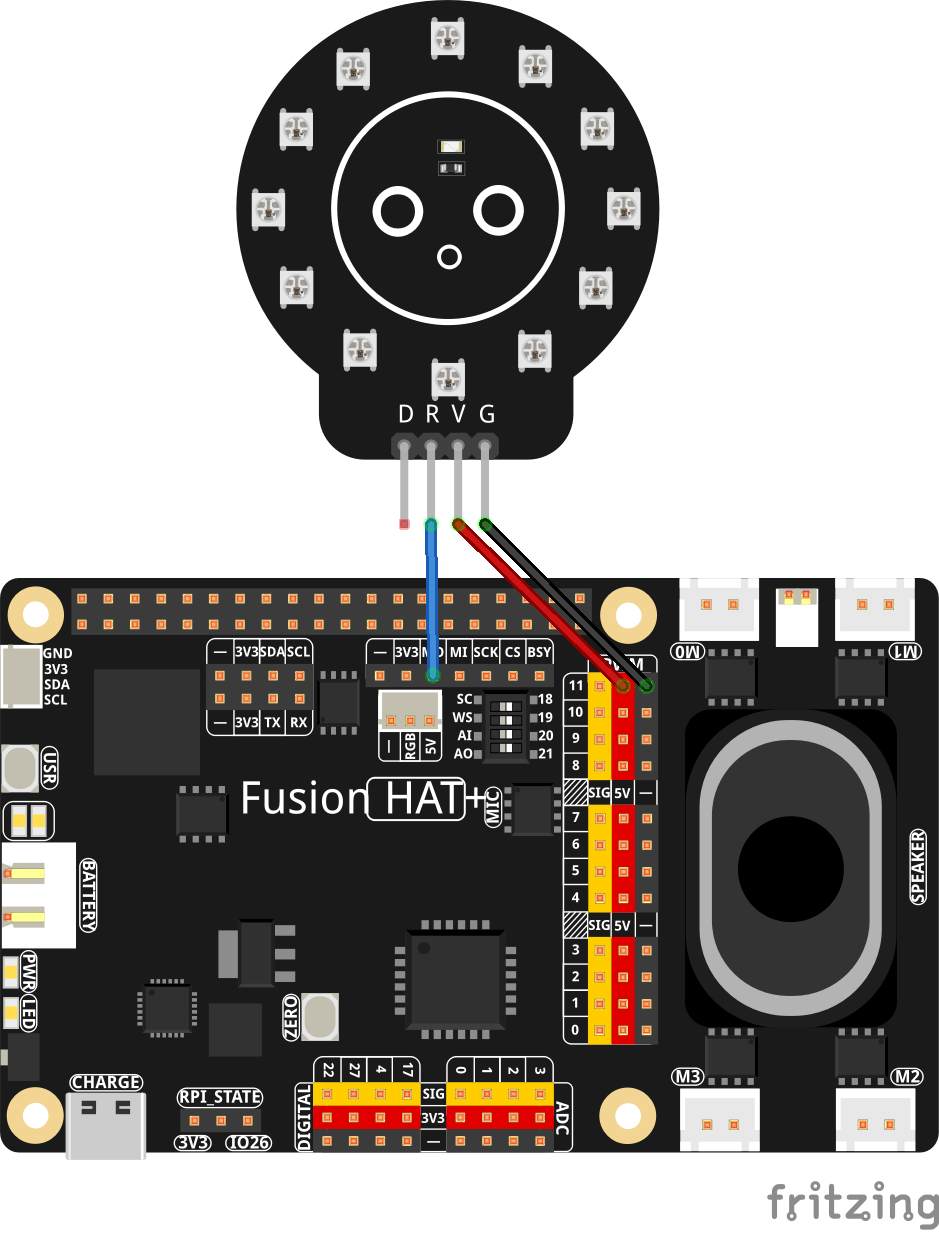
This is the schematic we are using to connect the NeoPixel ring: