Simple Demonstration of IR Remote Control of Arduino
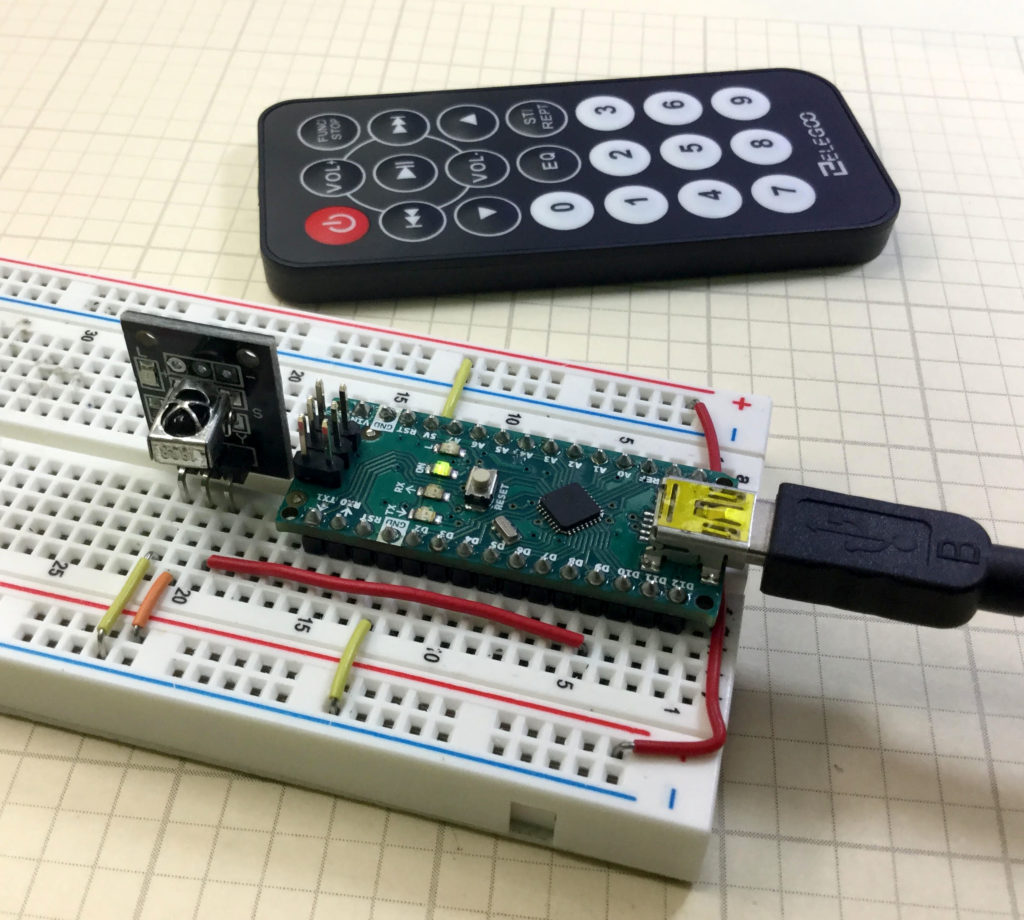
The Elegoo Kit contains a simple IR module and remote which allow you to add remote control to your arduino project. In this lesson we show you how to connect the remote, and then how to send signals to the arduino using the remote unit. This video takes you through the process step by step.
The code below will get you started, and then you can expand the code to map all the buttons to simple string commands.
Arduino
1
2
3
4
5
6
7
8
9
10
11
12
13
14
15
16
17
18
19
20
21
22
23
24
25
26
27
28
#include <IRremote.h> //Make sure to install the library
intIRpin=9;
IRrecvIR(IRpin);
decode_resultscmd;
StringmyCom;
voidsetup()
{
Serial.begin(9600);
IR.enableIRIn();
}
voidloop(){
while(IR.decode(&cmd)==0){
}
Serial.println(cmd.value,HEX);
delay(1500);
IR.resume();
if(cmd.value==0xFF6897){
myCom="zero";
Serial.println(myCom);
}
if(cmd.value==0xFFA25D){
myCom="pwr";
Serial.println(myCom);
}
}
We are building this with parts from our Elegoo Kit , and our actual build is using an Arduino Nano, which allows the project to be built on a single breadboard. You can get the neat jumper wires HERE.
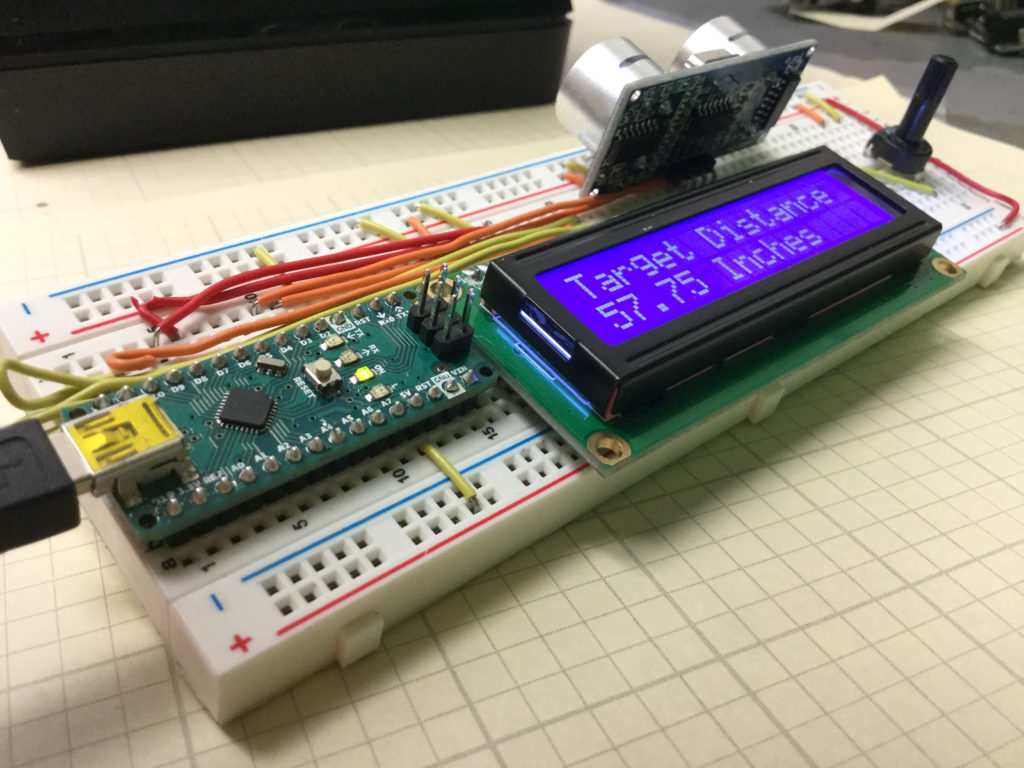
This is our completed build of a portable, ultrasonic distance sensor.
In this lesson we add a “GO” button to our portable distance measurement system. Note that from the work done in Lesson 59, we are only left with digital pin 13. The problem is that pin 13 is connected to the on-board diode, so trying to use pin 13 as a button pin will not work.
Never fear we can use one of the analog in pins. To use an analog in pin as the button pin, in the void setup, you need to declare the pin as an INPUT, and then digitalWrite the pin to HIGH. This will connect it to 5V through a pullup resistor. Now you just have to do a digital read to that pin. When button is untouched, you will read a “1”, and when you press the button, you will read a “0”.
We are building this with parts from our Elegoo Kit , so if you get this kit, you will be using the same hardware we are using.
A challenge with this project is to keep the build neat and compact, which is much easier if you use an Arduino Nano, which allows the project to be built on a single breadboard. The build neatness is also facilitated by using small straight jumper wires, which you can get HERE.
This video takes you through the explanation step-by-step:
This is our completed build of a portable, ultrasonic distance sensor.
This Lesson picks up where Tutorial 55 left off. You want to take the basic distance measurement capability you built, and make it portable. In order to make it portable, you will need to add an LCD display, and figure out a way to power it. The easiest way to get portable power is to connect the Arduino to a USB power bank.
The sensor is part of our Elegoo Kit , so if you get this kit, you will be using the same hardware we are using.
A challenge with this project is to keep your build nice and neat, as there are lots of connections, and if any are not completely secure, you will get unpredictable performance in your device. For this build we will be using an Arduino Nano, which allows the project to be built on a single breadboard. You can use the Arduino Uno if you do not have a Nano, and things will work out the same. The build neatness is also facilitated by using small straight jumper wires, which you can get HERE.
The first task will be to lay out your components in preparation for the build. Carefully consider all the connections you will have to make, and then organize so that the connections can be made with minimum confusion. This means minimize the number of crossing wires, and try to have needed connections in the same general area.
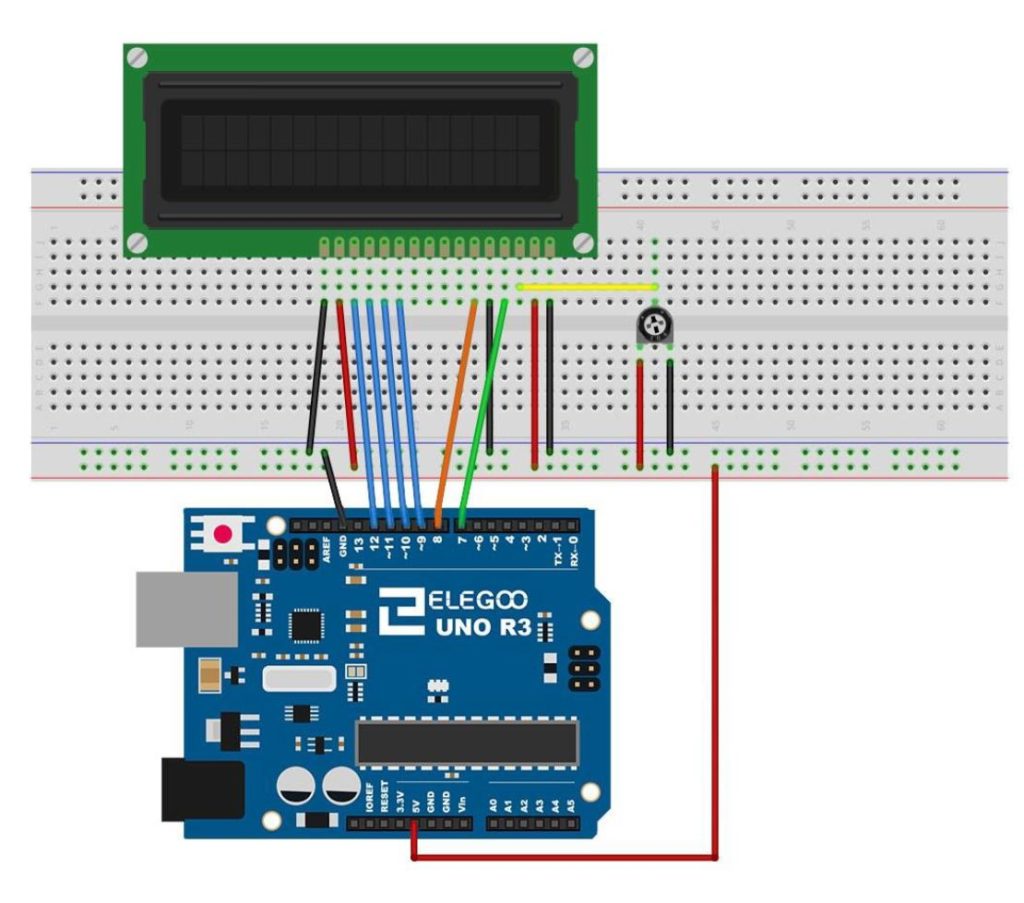
The LCD will need to be wired up according to the following Schematic:
This schematic will allow you to connect the LCD to the Arduino
Now, you will also need to connect the HC-SR04 Ultrasonic Sensor.
HC-SR04 Pin
Arduino Pin
VCC
5 V
GND
GND
Trig
digital 2
Echo
digital 3
This video takes you through the build and programming step-by-step.
In this lesson we show you how to quickly and easily plot live data from the arduino using the Serial Plotter in the Arduino IDE. The nice thing about this feature is that it is very easy to use. The downside is you have absolutely no formatting options. I hope they will improve this feature in the future, but it is very useful, even with its limitations.
This lesson builds on the work done in Lessons 53 and 55. In this lesson we use the Ultrasonic Sensor to build a distance sensor. The HC-SR04 ultrasonic sensor can be programmed to send out a ping, and then measure the time it takes to hear the echo of the ping come back, after bouncing off a target. Knowing the speed of sound allows us to calculate distance to the sensor.
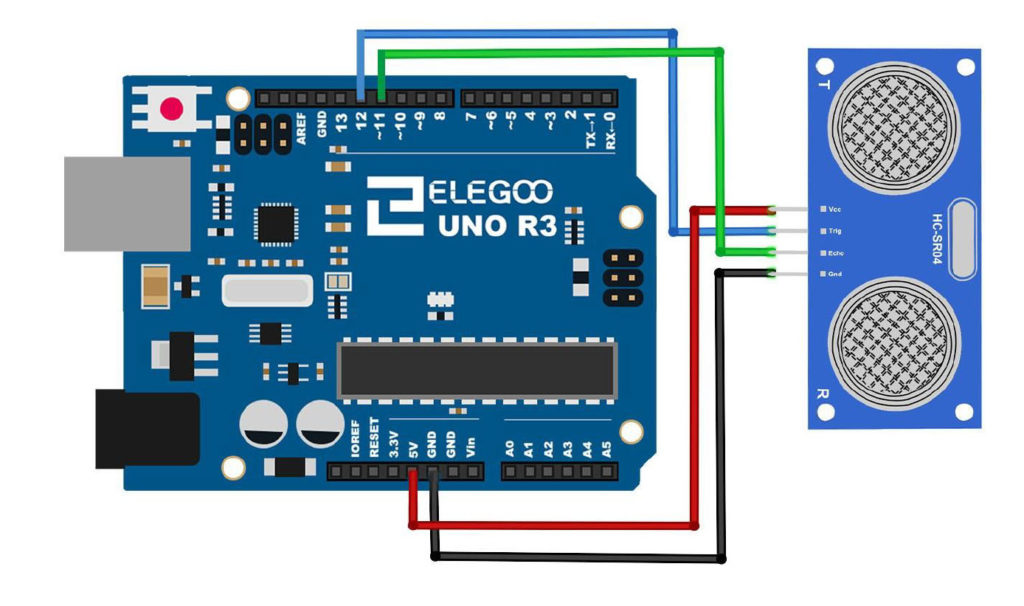
The circuit uses the following Schematic:
Schematic for Connecting the HC-SR04 to an Arduino
The sensor is part of our Elegoo Kit , so if you get this kit, you will be using the same hardware we are using. This project builds on the work we did in Lesson 53.
For this build we will be using an Arduino Nano, which allows the project to be built on a single breadboard. You can use the Arduino Uno if you do not have a Nano, and things will work out the same. The build neatness is also facilitated by using small straight jumper wires, which you can get HERE.
Making The World a Better Place One High Tech Project at a Time. Enjoy!
We use cookies to ensure that we give you the best experience on our website. If you continue to use this site we will assume that you are happy with it.Ok