
A key part of mechanical design is to evaluate your designs after fabrication. How precisely are you realizing the designs you have in software? In this lesson we learn how to use digital calipers to evaluate our physical model. In order to do this lesson you need a good set of digital calipers, which you can get HERE.
Category Archives: Tutorial
Sketchup Tutorial LESSON 4: Simple 3d Design Example for 3D Printing
In this lesson we continue to build our design skills by creating a 3D widget in sketchup to print on our 3D printer. Also, if you are following along, you really need to get a nice set of digital calipers for testing dimensions and tolerances of your design you can get a good pair here:
Sketchup Tutorial LESSON 3: Printing Sketchup Designs on a 3D Printer
In this video lesson we describe how to print designs from Sketchup on a 3D printer. Key thing is you need to go to the sketchup Extension Warehouse, under the window tab in scketchup. Then you need to search for and install the .STL Export extension. With this extension, you can export your design file as an .stl file. Then you can load the .stl file into your slicer software to generate the gcode for the printer. I found that it is very straightforward to go from sketchup to the 3D printer.
Sketchup Tutorial LESSON 1: Simple Introduction to Sketchup for Begineers
Those of us who come from an electronics background often find 3D CAD software confusing beyond description. All of our intuition when it comes to drawing or sketching does not seem to work in CAD programs. I think there are several reasons for that. First, as electronic folks, I think we fundamentally think in two dimensions. Hence our intuition in drawing or sketching is probably based on simple programs like powerpoint or draw. To learn how to properly use a 3D design package like sketchup we need to start by forgetting everything we think we know about drawing and to start with a clean slate.
The video above will step you through how to learn some of the simple basics of sketchup. The thing to realize is that with a CAD program like sketchup, you must be very mindful of your design pallet. In a program like powerpoint, it more or less guesses whether you are trying to draw, move or resize. In CAD software, you must explicitly tell it what you want to do by clicking on a tool in the pallet. Hence things that you are accustomed to doing in one step now take two steps. Once you realize this, life gets a lot easier. The second key thing to realize is that in a sketching program you typically just eyeball in position and dimension, and create objects by more or less eyeball and freehand. In CAD software you must develop the habit and discipline of deliberately setting location and dimension when you create an object. It is very easy to place and size things when you create them, but sometimes much harder to do this later.
Hence the key to using CAD software is to be mindful of using the tool pallet, and to be mindful of carefully setting position and dimension when an object is created.
I am going through these lessons on CAD to try and help you learn how to design things for 3D printers. Far too many owners of 3D printers just download design files from the WEB and never develop any design skill themselves. In this series I hope you learn to both design and make your designs on a 3D printer.
My first try at 3D printing was a nightmare. I got the Makerbot Replicator II and it was a disaster. It never worked properly and really broke my heart. More recently I have been working with Raide3D printers and have been very impressed. If you are interested in a 3D printer, I really recommend Raise 35. You can order there entry level one here:
Or their top of the line one here:
Hope you will consider one of these printers, and hope you will follow along in this new series of tutorials on Sketchup and 3D printing.
Raspberry Pi Zero Model W Tutorial 2: Making a Wireless Portable IP Camera
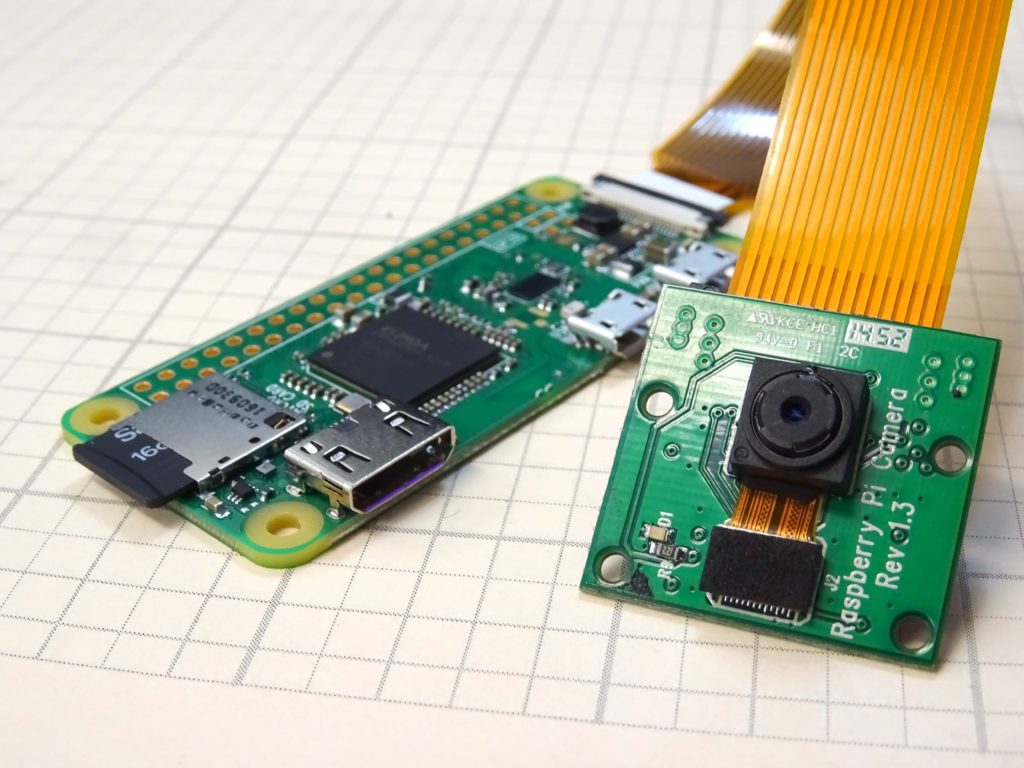
This is a super cool project where we build a concealable, portable, live streaming IP camera based on the Raspberry Pi Zero Model W, and the Raspberry Pi camera module. In order to do this lesson, you need to start with Lesson 1, where we show you how to get the IP address of your Pi zero, and how to get it booted. For this project, you need a Raspberry Pi Zero Model W. If you do not have one, you can get the ESSENTIAL HARDWARE HERE. In addition, you will need the Raspberry Pi Camera, which you can GET HERE. The Pi Zero needs a special Camera Cable, which you can get HERE.
That should be the equipment you need to this really fun project. When you are ready to go, the instructions are in the video below.