Hey everyone, and welcome back to the AI on the Edge series!
In today’s lesson, we’re tackling one of the most important programming concepts you’ll need as we build more advanced AI and robotics projects — Python Threading.
Up until now, our programs have been pretty linear — they do one thing at a time. But as our projects get smarter and more interactive, we often need several things happening at the same time. That’s exactly where threading comes in. In this lesson, I give you a gentle, practical introduction to threading by creating a program that blinks an LED while simultaneously listening for your commands to change the blink speed — all without one task blocking the other.
You’ll see how to create a separate thread that handles user input while the main program continues blinking the LED smoothly. We also use a Queue to safely pass data between the threads. This is a foundational skill that becomes incredibly valuable later in the class when we need to run voice recognition, camera processing, sensor reading, and motor control all at the same time.
I designed this lesson to be very beginner-friendly. If you’ve never used threading before, don’t worry — I walk you through every line of code and explain why we do things the way we do. By the end of this video, you’ll have a solid understanding of how to launch background threads, manage shared variables safely, and keep your main program responsive.
This lesson is a big stepping stone in our AI on the Edge journey. The ability to run multiple tasks concurrently is what separates simple scripts from real-world intelligent systems that can listen, think, and act at the same time.
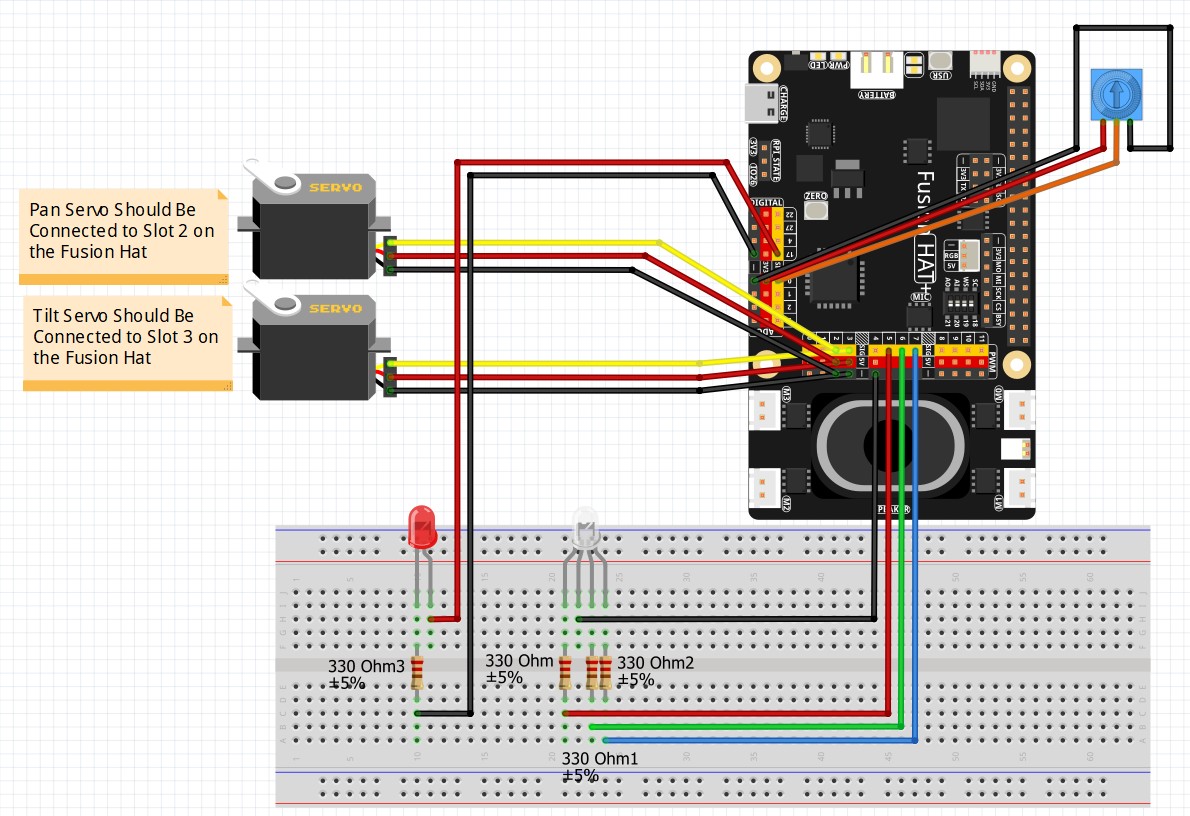
So grab your SunFounder Fusion AI Hat, hook up an LED, and get ready to take your Raspberry Pi programming skills to the next level. Once you understand threading, a whole new world of possibilities opens up!
As always, I strongly encourage you to code along with me in the video and then experiment on your own. Try adding more LEDs, change the commands, or combine it with things we’ve learned in previous lessons. That hands-on practice is where the real learning happens.
I’m really excited for you to learn this one — it’s going to make the rest of the class a lot more fun and powerful!
In today’s lesson, this is the code we developed.
|
1 2 3 4 5 6 7 8 9 10 11 12 13 14 15 16 17 18 19 20 21 22 23 24 25 26 27 28 29 30 31 32 33 34 35 36 37 38 39 40 41 42 43 44 45 46 47 48 49 50 51 |
# ==================================================================== # DISCLAIMER: # This code is provided as-is for educational and experimental # purposes only. The author makes no representations or warranties of # any kind concerning the safety, suitability, or accuracy of this # code. Use at your own risk. The author assumes no liability for any # damages, system failures, security breaches, or network issues # resulting from the use or implementation of this script. # ==================================================================== from fusion_hat.pin import Pin, Mode import threading from queue import Queue from time import sleep redPin = 17 redLED = Pin(redPin, Mode.OUT) redLED.low() blinkDelay = 1.0 running = True blinkQ = Queue() def blinkTime(): print("Input Thread is Running") global running while running: cmd = input("Input Blink Time in Seconds, or Q for Quit: ") if cmd.upper()== "Q": running = False break blinkQ.put(float(cmd)) print("Thread is Terminated") blinkThread = threading.Thread(target=blinkTime,daemon=True) blinkThread.start() print("Main Program Has Commenced!") try: while running: if blinkQ.empty()==False: blinkDelay = blinkQ.get() redLED.high() sleep(blinkDelay) redLED.low() sleep(blinkDelay) redLED.low() print("Program Terminated") except KeyboardInterrupt: running = False redLED.low() print("LED Released") print("Program Terminated") |