
We are very excited to see that Raspberry Pi has announced the release of the WiFi model of the Raspberry Pi zero, which has onboard Bluetooth and WiFi. Anticipated price is $10. We believe this new model will be a game changer, and will accelerate the development of exciting new prototypes and products. As of this morning, I have not found any supplier with the devices in stock, but will order one as soon as I can find a supplier. I plan to do some tutorials and projects as soon as I can get my hands on one of these. Please share your thougts below.
All posts by admin
Review of the Raspberry Pi Zero
I was extremely excited to learn of the Raspberry Pi Zero. It is a trimmed down version of wildly popular the Raspberry Pi, and one designed for embedded operation. In getting the Pi Zero I was really impressed with its small size and low cost. It has a small HDMI output, and two micro-usb inputs (one is OTG). The Pi Zero is about the size of a stick of gum, and is priced at $5. While I was impressed with just about everything associated with the Pi Zero, in my mind it has one fatal flaw. It has neither an Ethernet Port, nor on board Wifi. To really use the Pi Zero for any of the applications I would be interested in, Wifi or an Ethernet connection would have to be added. Making this more difficult is the issue of the Micro USB connection. I am not aware of any micro-USB wifi units. Hence, we must buy a cable that goes from micro-USB to USB, and then get a USB Wifi Dongle. The cost of the cable alone will likely be more than the Pi Zero itself, and destroys the small form factor provided by the Zero.
So, as much as I love the Pi 3, and as much as I wanted to love the Pi zero, I am going to have to give it the thumbs down. I understand when you make something small and cheap, you have to give up things. But, I with they would have dropped the HDMI output and one of the USB connectors, and provided on board Wifi. I am hopeful they will at some point release an upgraded Pi Zero with on board Wifi. Then I would pursue development on this platform.
The Seven Degrees of Stupid
I hope to start a dialog on a topic I think is very important. The topic is “Stupid”. I hope you will watch the video and comment with your thoughts, arguments or analysis. I think the cost of “Stupid” on our institutions and organizations is becoming overwhelming, and we must figure out a way to deal with it. Before we can effectively deal with it, we have to understand what it is. In the video above, and description below, I try to create a “Taxonomy of Stupid”.
I start with some of the ideas of Carlo Cipolla. He suggested a taxonomy for considering “Stupid”. He suggested we can classify people based on two parameters. The first is whether a person’s actions benefit other people, and the second is whether a person’s actions benefit themselves. This concept leads to the picture below:
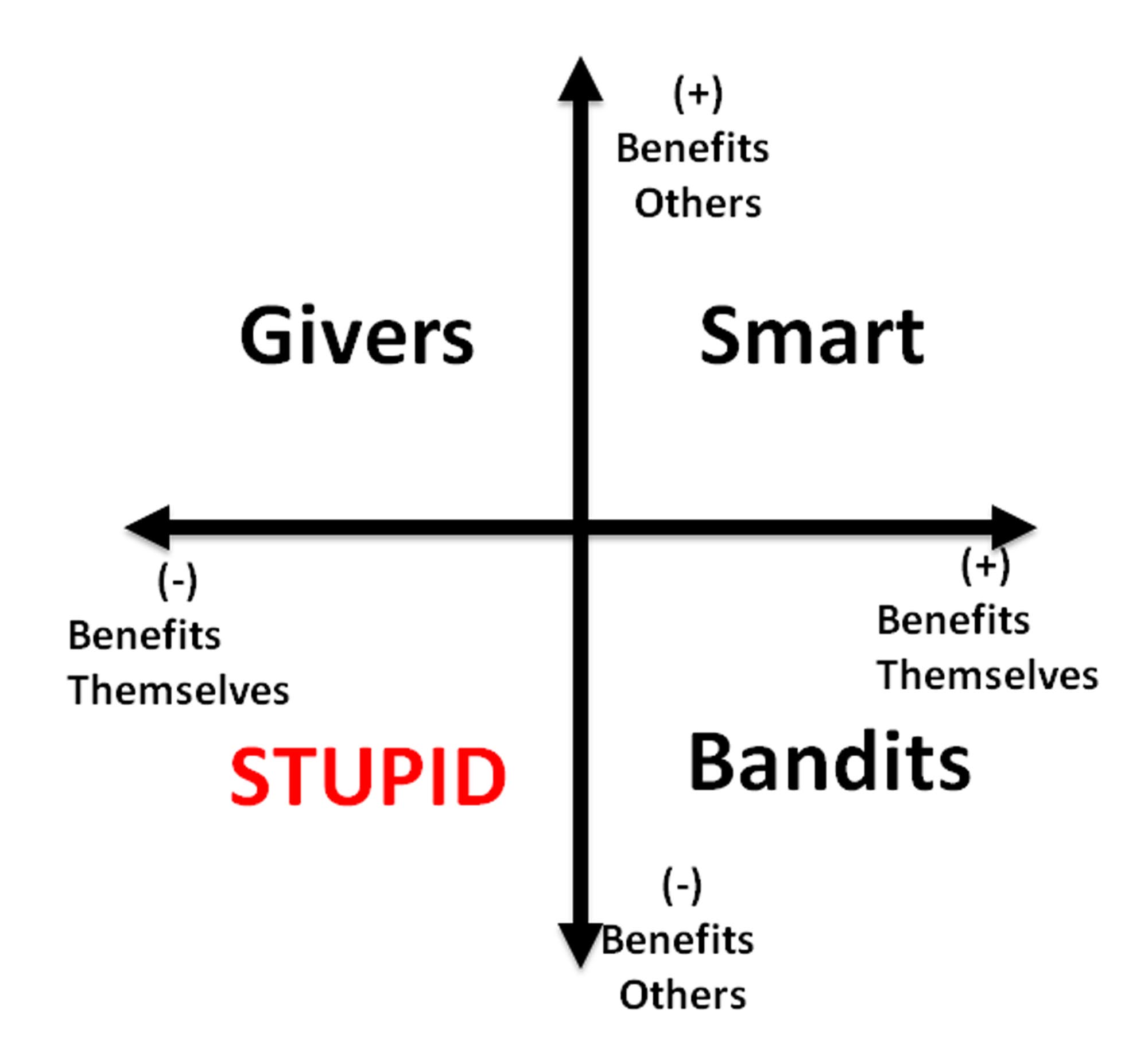
Notice that in this work, “Stupid” has nothing to do with education level, or how quickly someone learns. It has to do with whether their actions benefit themselves, and benefit others.
The intriguing thing about “Stupid” people is that there actions do not benefit other people, and do not benefit themselves. It is easy for us to understand “Bandits”. They are selfish, and always doing things only to benefit themselves. This is easy to understand and easy to deal with. Also, givers are easy to understand and easy to deal with. They are selfless people that just want to do good, without wanting anything for themselves.
We admire, and aspire to be “Smart” . . . someone who makes the world a better place, and is nicely rewared for their work.
I would suggest that people in the “Stupid” category cause immeasurable damage to organizations and as a society, we have to figure out how to better deal with them. In order to do this, I suggest we consider what I call the Seven Degrees of Stupid.
- The First Degree of Stupid
Stupid is a person whose actions are counterproductive to themselves and to others. They do things for no apparent reason and those things are damaging to other people, while bringing no benefit to the person themselves. The Stupid person does not do stupid things deliberately or maliciously. He is not deliberately trying to create disorder, but the essence of his being is to generate disorder all around him. He often appears to do things independently without talking to other people, and does things for no apparent reason. He is not even trying to generate a beneficial outcome, and when confronted often has difficulty explaining why he did a certain thing.
2. The Second Degree of Stupid
The Stupid Person always breaks things. Understand that “things” can be physical objects, organizations, systems, software, processes or relationships. The core competency of the Stupid Person is to bring disorder to all things around him. A smart person constantly brings order to the things around him, but the Stupid Person brings disorder. The stupid person is not trying to bring disorder, but it is just the fundamental output of all his actions.
3. The Third Degree of Stupid
The stupid person will always Maximize Disorder. It is not enough to just create disorder, he will always Maximize Disorder. That means that he will always break something at the worst possible place at the worst possible time. This characteristic is what allows him to always Maximize the Disorder around him. Again, there is no particular reason the Stupid Person did the damaging thing they did. They do them without talking to people first, and for no apparent reason.
4: The Fourth Degree of Stupid
Let us define a function I(x) which is the overall impact that results from a person’s actions. Consider it, if you will, the ripples that are generated from a person’s actions. The Fourth Degree of Stupid states that:
I(Stupid) >> 10*I(Genius)
In words, this is saying that the negative impact of one Stupid Person greatly outweighs the positive impact of 10 Geniuses. The disorder brought by one Stupid Person in an organization can easily eliminate the positive impact of many very smart people.
5: The Fifth Degree of Stupid
A Stupid Person has an uncanny knack of convincing other people that their way of doing things is right. The smart person knows that the Stupid Person is suggesting something that is wrong and will bring disorder, but some peculiar aspect of the Stupid Person’s nature is that he can convince people that his ideas should become the Standard Operating Procedure for the organization. The smart person will warn that the Stupid Person’s idea will bring utter disorder to the organization, yet the Stupid Person’s way is always adopted. Then when utter disaster occurs, the smart person is blamed, since his negativity, unwillingness to support the new direction, and argumentativeness must have been the reason for the disorder.
6: The Sixth Degree of Stupid
Not only will a Stupid Person never have a good idea, but the Stupid Person is not able to recognize a good idea when it is put in front of him. He has an ability to ignore facts, data and logic to continue to believe that his way is right, despite the disorder it is bringing to the organization. It is almost impossible to force a Stupid Person to do things the right way. On some occasions, he might be forced to do things the right way, but he will always go back to doing things the Stupid Way at the worst possible place and the worst possible time. Again, this ensures that he continues to maximize disorder in the organization around him.
7: The Seventh Degree of Stupid
The Geographical Extent of the actions of a Stupid Person will always be much greater than the Geographical Extent of the actions of a Smart Person. A smart person will come to work and face a set of tasks he must do. He realizes that by grouping the tasks in a certain order, he will not have to retool as often, and hence can complete his work most efficiently (High Degree of Order). His Smart Actions have limited geographical impact. The impact is usually limited to his immediate cubicle, or potentially to people in adjacent cubicle.
In contrast, the geographical extent of the actions and ideas of the Stupid Person will permeate the entire operation. One reason is that the Stupid Person is very often drawn to jobs involving writing Standard Operating Procedures, or to Bureaucratic jobs which define company policies and procedures. This is a natural consequence of the Third Degree, which is that a Stupid Person will always maximize disorder. The Stupid Person is drawn to jobs which will enable him to Maximize Disorder.
In many cases, organizations are unwitting co-conspirators with the Stupid Person. If the stupid person is on the factory floor, he constantly breaks equipment, gets hurt, and causes accidents. The factory floor manager becomes frustrated, and shuffles him off to a bureaucratic position, where he eventually writes company policy. Hence the smart person loses his ability to even have limited Geographic Impact, since he now must follow procedures written by the Stupid Person. Hence Disorder continues to be maximized in the organization.
I would appreciate your comments on this below.
Low Cost Raspberry Pi IP Camera
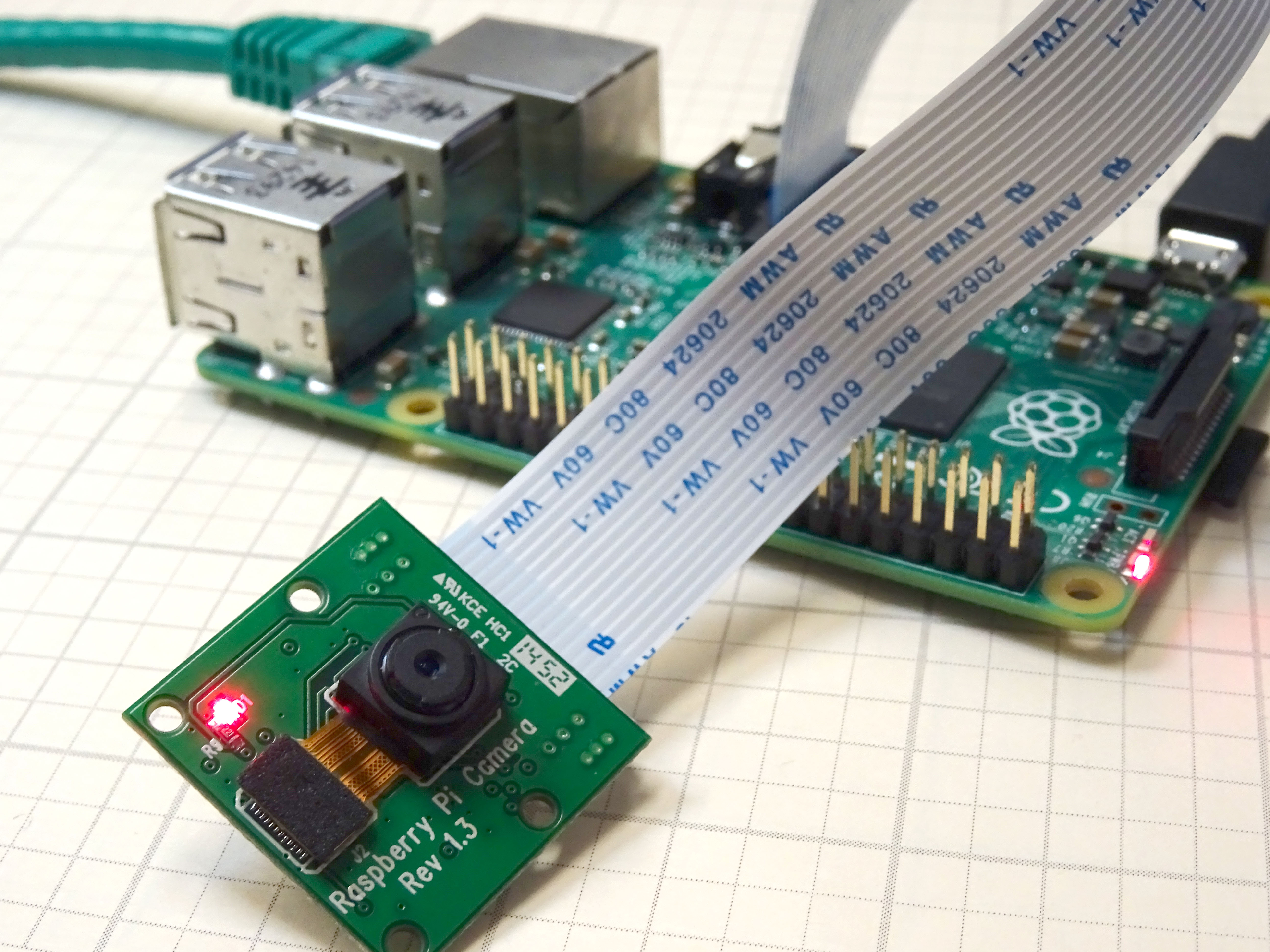
In this lesson we give you a step by step tutorial on how to create a low cost IP camera from a Raspberry Pi and the Raspberry Pi camera module. (If you need to get a Raspberry Pi and Camera Module, we recommend this complete starter Kit, which you can order HERE. If you already have a Raspberry Pi, and just need a camera, you can get the camera module HERE.) We are going to assume you already have your Raspberry Pi up and running, and are able to make a connection to it via Putty or SSH. If you are completely new to the Raspberry Pi, you should probably start with the first two lessons on THIS PAGE.
This video will take you through the steps one at a time. In addition, the tutorial below has the commands that you can copy and paste. We recommend you both follow the video, and get the steps from the instructions below, so you do not have to manually type the commands. Be very careful . . . you must be precise in following these instructions for things to work.
OK, now assuming you have your Raspberry Pi up and running, and you can connect via Putty or SSH, These are the steps to get your dandy personal IP camera working. You will type or copy and paste these lines one at a time into the Raspberry Pi command line.
STEP 1: Get Your Raspberry Pi Up to Date:
|
1 2 |
sudo apt-get update sudo apt-get upgrade |
STEP 2: Install Lighttpd Web Server:
|
1 |
sudo apt-get install lighttpd lighttpd-doc php5-common php5-cgi php5 zip |
STEP 3: Enable Server to Process PHP Scripts
|
1 2 3 |
sudo lighty-enable-mod fastcgi-php sudo lighty-enable-mod cgi sudo lighttpd-enable-mod fastcgi |
STEP 4: Create a PHP WEB Page:
|
1 |
sudo nano /var/www/html/php.php |
Now you will want to type or paste this info into the nano window.
|
1 |
<?php phpinfo(); ?> |
STEP 5: Save your nano file with these key strokes:
|
1 2 3 |
Ctrl O Enter Ctrl X |
To be clear, you press the Control key and the letter “O” at the same time. Then press the enter key. Then press the Control and “X” key at the same time.
STEP 6: Restart the Webserver:
|
1 |
sudo /etc/init.d/lighttpd restart |
STEP 7: Check That the WEB Server is Working:
Go to a browser on a Windows computer on your network, and type:
http://10.1.15.94/
(NOTE: You would use your Pi’s IP address above. The number I use above is the IP address of our Pi. Your number will be different. You can find out your IP address on the pi by typing ifconfig into the terminal window.)
If you configured things correctly, you should get an Apache info page pop up.
Also, you should be able to see your php information page by entering:
http:/10.1.15.94/php.php
Again, you should use your IP address. If you did things correctly you should have a page come up with lots of tables describing php configuration
STEP 8: Reboot Your Computer
|
1 |
sudo reboot |
STEP 9: Install the crtmpserver
|
1 |
sudo aptitude install crtmpserver |
STEP 10: Backup default crtmpserver file
|
1 |
sudo cp /etc/crtmpserver/applications/flvplayback.lua /etc/crtmpserver/applications/flvplayback.lua.bakORIGINAL |
STEP 11: Edit flvplayback.lua file
Open the file in nano editor:
|
1 |
sudo nano /etc/crtmpserver/applications/flvplayback.lua |
Now edit your file to these values:
|
1 2 3 4 |
validateHandshake=false, keyframeSeek=false, seekGranularity=0.1, clientSideBuffer=30, |
STEP 12: Save and Exit
|
1 2 3 |
Ctrl O Enter Ctrl X |
To be clear, you press the Control key and the letter “O” at the same time. Then press the enter key. Then press the Control and “X” key at the same time.
STEP 13: Restart crtmpserver
|
1 |
sudo /etc/init.d/crtmpserver restart |
STEP 14: Remove ffmpeg
We need to make sure we have a clean copy of ffmpeg, so safest thing to do is un-install it in case an old version is on your pi.
|
1 |
sudo aptitude remove ffmpeg |
STEP 15: Intall Latest git-core and ffmpeg software
|
1 |
sudo apt-get install git-core |
and then:
|
1 |
cd /usr/src |
and then:
|
1 |
sudo mkdir ffmpeg |
and then:
|
1 |
sudo chown `whoami`:users ffmpeg |
and then:
|
1 |
sudo git clone git://source.ffmpeg.org/ffmpeg.git ffmpeg |
and then:
|
1 |
cd ffmpeg |
and then:
|
1 |
sudo ./configure |
STEP 16: Now Make and Install the software:
These two commands will take a while. After inputting the commands go and get some coffee.
|
1 |
sudo make |
|
1 |
sudo make install |
STEP 17: Install Samba:
|
1 |
cd / |
We will want Samba to easily exchange files to and from windows.
|
1 |
sudo apt-get install samba samba-common-bin |
STEP 18: Edit Samba File:
|
1 |
cd /etc/samba |
|
1 |
sudo nano smb.conf |
Now you need to add these lines to the smb.conf file. You should add them into the SHARE DEFINITIONS section, after the netlogin part.
|
1 2 3 4 5 6 7 8 |
[home] path= / public= yes read only = no writeable = yes browseable = yes create mask = 0777 directory mask = 0777 |
After adding this code, my SHARE DEFINITIONS section looks like this:
|
1 2 3 4 5 6 7 8 9 10 11 12 13 14 15 16 17 18 19 20 21 22 23 24 25 26 27 28 29 30 31 32 33 34 35 36 37 38 39 40 41 42 43 44 45 46 47 48 49 50 51 52 53 54 55 |
#======================= Share Definitions ======================= [homes] comment = Home Directories browseable = no # By default, the home directories are exported read-only. Change the # next parameter to 'no' if you want to be able to write to them. read only = yes # File creation mask is set to 0700 for security reasons. If you want to # create files with group=rw permissions, set next parameter to 0775. create mask = 0700 # Directory creation mask is set to 0700 for security reasons. If you want to # create dirs. with group=rw permissions, set next parameter to 0775. directory mask = 0700 # By default, \\server\username shares can be connected to by anyone # with access to the samba server. # The following parameter makes sure that only "username" can connect # to \\server\username # This might need tweaking when using external authentication schemes valid users = %S # Un-comment the following and create the netlogon directory for Domain Logons # (you need to configure Samba to act as a domain controller too.) ;[netlogon] ; comment = Network Logon Service ; path = /home/samba/netlogon ; guest ok = yes ; read only = yes [home] path= / public= yes read only = no writeable = yes browseable = yes create mask = 0777 directory mask = 0777 # Un-comment the following and create the profiles directory to store # users profiles (see the "logon path" option above) # (you need to configure Samba to act as a domain controller too.) # The path below should be writable by all users so that their # profile directory may be created the first time they log on ;[profiles] ; comment = Users profiles ; path = /home/samba/profiles ; guest ok = no ; browseable = no ; create mask = 0600 ; directory mask = 0700 |
Now save and exit the nano editor with:
Ctrl O
Enter
Ctrl X
At this point, your Raspberry Pi should show up on your Windows computer network on your windows machine. On your windows machine, open a folder, click on “network” on the left, and you should see your raspberry pi show up. Now you can move files to and from your Raspberry Pi from Windows.
STEP 19: Install Strobe Software and WEB Page:
We will want to be able to view the live video stream in a browser, so we need to install the Strobe software. These next steps will install and enable the strobe feature.
|
1 |
cd /var/www/html |
|
1 |
sudo mkdir strobe |
|
1 |
sudo chmod -R 777 strobe |
Now the easiest way to get the strobe software is to download it on a windows computer. You can get the software by going to:
http://sourceforge.net/projects/smp.adobe/files/
and downloading the latest version of strobe media playback.
Now open the zipped folder and drag and drop the folder “for Flash Player 10.1” to your desktop.
Now move the CONTENTS of the unzipped “for Flash Player 10.1” folder onto your Raspberry Pi. You will want to move the CONTENTS of “for Flash Player 10.1” folder into the /home/var/www/html/strobe folder on your Raspberry Pi. If you installed Samba correctly, the Raspberry Pi should show up when you open a folder in Windows and click on “Network”.
Now you have the strobe software installed and you need to create a Strobe WEB page to display your live video.
First, make sure you are in the html folder by typing:
|
1 |
cd /var/www/html |
On your raspberry pi, now issue the command:
|
1 |
sudo nano index.html |
Now paste this code into your Nano window. You can paste by copying the code below, and then going to your Raspberry Pi command Window, and right mouse clicking.
|
1 2 3 4 5 6 7 8 9 10 11 12 13 14 15 16 17 18 19 20 21 22 23 24 25 26 27 28 29 30 31 32 33 34 35 36 37 38 39 40 41 42 43 |
<!DOCTYPE html PUBLIC "-//W3C//DTD XHTML 1.0 Strict//EN" "http://www.w3.org/TR/xhtml1/DTD/xhtml1-strict.dtd"> <html xmlns="http://www.w3.org/1999/xhtml"> <head> <title>My Spy PiCam</title> <script type="text/javascript" src="strobe/lib/swfobject.js"></script> <script type="text/javascript"> // Create a StrobeMediaPlayback configuration var parameters = { src: "rtmp://" + window.location.hostname + "/flvplayback/myStream", autoPlay: true, controlBarAutoHide: false, playButtonOverlay: true, showVideoInfoOverlayOnStartUp: false, optimizeBuffering : false, initialBufferTime : 0.1, expandedBufferTime : 0.1, minContinuousPlayback : 0.1, poster: "strobe/images/poster.png" }; // Embed the player SWF: swfobject.embedSWF ( "strobe/StrobeMediaPlayback.swf" , "strobeMediaPlayback" , 1080 , 720 , "10.1.0" , {} , parameters , { allowFullScreen: "true"} , { name: "strobeMediaPlayback" } ); </script> </head> <body> <div id="strobeMediaPlayback"> <p>Alternative content</p> </div> </body> </html> |
Now you should save and exit nano with these commands:
|
1 2 3 |
Ctrl O Enter Ctrl X |
To be clear, you press the Control key and the letter “O” at the same time. Then press the enter key. Then press the Control and “X” key at the same time.
STEP 20: Enable Raspbery Pi Camera Module:
At the command line enter:
|
1 |
sudo raspi-config |
Scroll down and enable the camera.
STEP 21: Start the Camera:
You are now ready to fire up the camera. You can start the camera by issuing this command in the Raspberry Pi command window.
|
1 |
raspivid -t -0 -w 1080 -h 720 -awb auto -fps 30 -rot 90 -b 1200000 -o - |ffmpeg -loglevel quiet -i - -vcodec copy -an -f flv -metadata streamName=myStream tcp://0.0.0.0:6666& |
STEP 22: View the Live Stream
Now to view the live stream just open a browser on a computer on your network and type in the IP address of your pi:
http://10.1.15.94
(Use your ip address. The one above is my IP address.
This has been a long project, but I hope well worth it. If you follow the instructions EXACTLY, it should work. Enjoy!
The Ultimate Raspberry Pi Project: To the Edge of Space with Raspberry Pi
We have what we consider to be the Ultimate Raspberry Pi project . . . we send a Raspberry Pi instrument package to space, and telemeter live data back to earth, including live video over HAM radios. We do the telemetry with an innovative technique we call Ethernet over Ham, where we use the 2.39 GHz Ham band right below commercial WiFi.
We have had 5 successful launches, and are preparing for the launch of Eagle VI in Early February, 2017. Watch the video and see a live demonstration of our raspberry pi based system. Enjoy!