The purpose of this lesson is to assign you homework. Your homework is to create a Bit Flipper. That is, for an 8 bit Binary or Hex number, invert the bits . . . “1” bits should become “0” and “0” bits should become “1”. For example,
if myByte=00001111
the flipped version of this would be
myByteFlipped=11110000
Similarly if myByte=00000001
myByteFlipped=11111110
You could do this with 255 if statements, but see if you can figure out a better way of doing it, and then demonstrate your results using the circuit we have been using in the last few lessons.
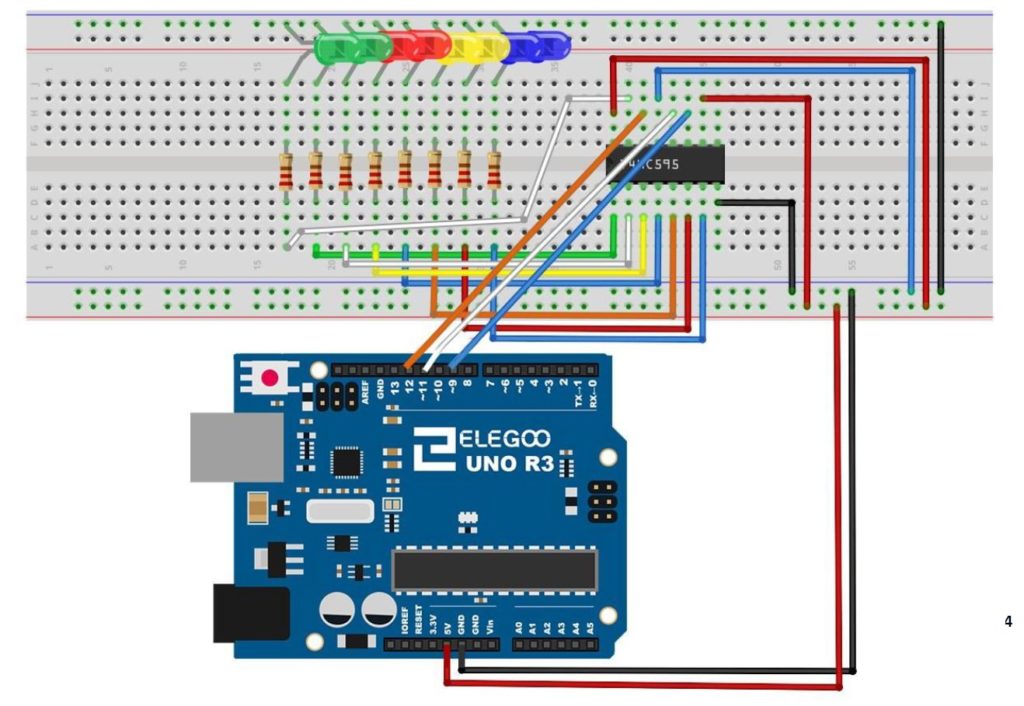
This is the schematic we use in this example to control 8 LEDs from the 74HC595 chip.
An official Arduino Uno R3 is available HERE. In this new series of lessons, I will be using the sensor and other components found in this KIT.
In this lesson, we explore how to perform Logical Shift Left (LSL), and Logical Shift Right (LSR) functions on binary numbers, and we implement a circuit to perform these functions using an Arduino and a 74HC595 chip. We will demonstrate these functions on 8 bit binary numbers.
We start with the basic circuit and code which were developed in Lesson 42.
An official Arduino Uno R3 is available HERE. In this new series of lessons, I will be using the sensor and other components found in this KIT.
We start with this circuit, which was explained in Lesson 42.
This is the schematic we use in this example to control 8 LEDs from the 74HC595 chip.
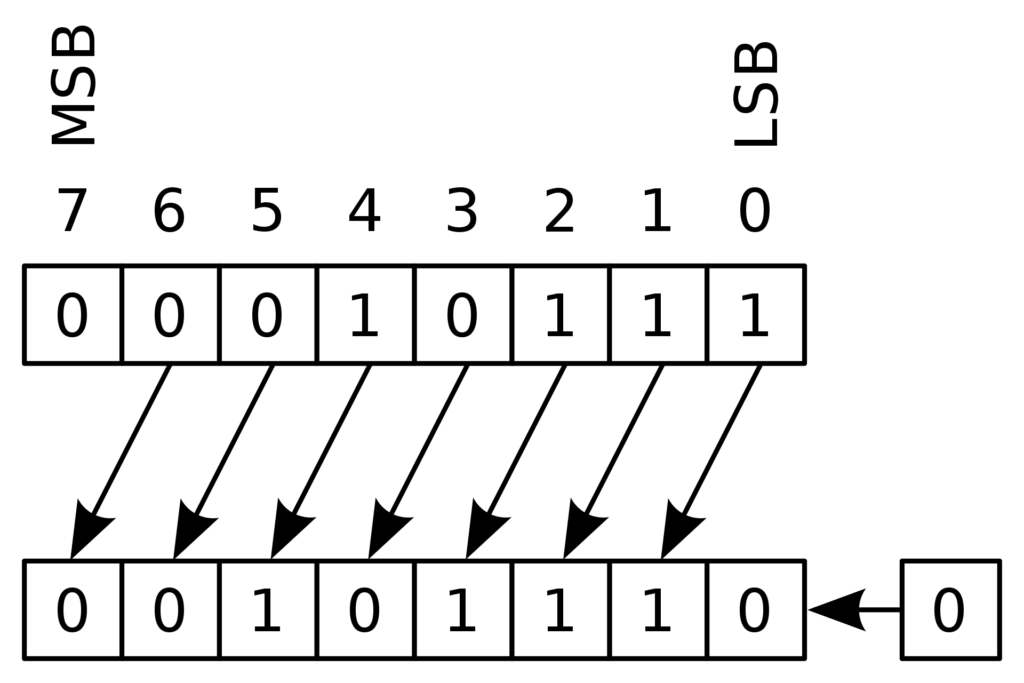
You can see that with this circuit, an 8 bit binary number can be visually displayed by illuminating the circuit LED. The goal of this lesson is to write code to perform LSL and LSR functions. The graphics below show conceptually how simple these functions are:
This diagram shows the Logical Shift Left function on an 8 bit binary number
MSB stands for “Most Significant Bit” and LSB stands for “Least Significant Bit”. You can see that the LSL function just moves each bit one to the left, and fills the empty LSB with a “0”.
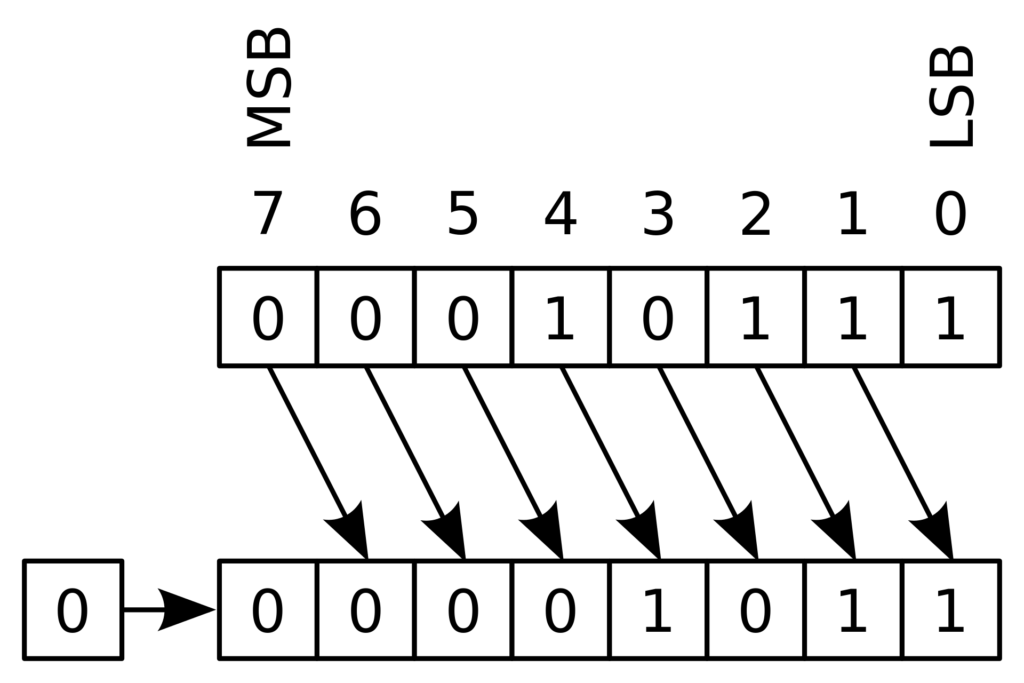
The LSR funtion is just as simple as illustrated below.
This diagram shows an 8 bit binary number undergoing a Logical Shift Right (LSR) funtion
Such shifts are often required when doing digital logic, so it is important to understand what the terms mean.
We can see that the LSL function can be performed by simply multiplying the binary number by 2. Similarly the LSR function can be performed by dividing the binary number by 2.
Code for LSL:
Arduino
1
2
3
4
5
6
7
8
9
10
11
12
13
14
15
16
17
18
19
20
21
22
23
24
25
intlatchPin=11;
intclockPin=9;
intdataPin=12;
intdt=1000;
bytemyByte=0b10000000;//Put your binary number here
In this Lesson we begin to work on developing a tilt stabilized platform using the BNO055 9-axis sensor, and we will take advantage of all the learning that happened in the first 22 lessons. Now though, we will be moving out of the virtual world of Vpython, and will begin working in the real world. In this lesson we focus on getting the gear together. You can go ahead and order your gear, and then next week we will begin assembling and coding. In addition to the arduino nano, and the BNO055, you will need:
NOTE: I am no longer recommending the MG995 four pack of servos, as I have recently gotten several bad batches, so have moved to the HiTEC linked above.
In lesson 42 we showed you how to connect and program the 74HC595 shift register. We showed how data in byte format would then be written to an array of 8 LED to give a visual representation of the binary version of that byte variable. We then gave you the assignment to create a Binary Counter using the 4HC595. In this lesson we show you the solution. This builds on Lesson 42, so make sure to have your basic 74HC595 circuit set up before starting this lesson.
An official Arduino Uno R3 is available HERE. In this new series of lessons, I will be using the sensor and other components found in this KIT.
The code we ended up developing in this lesson is provided below.
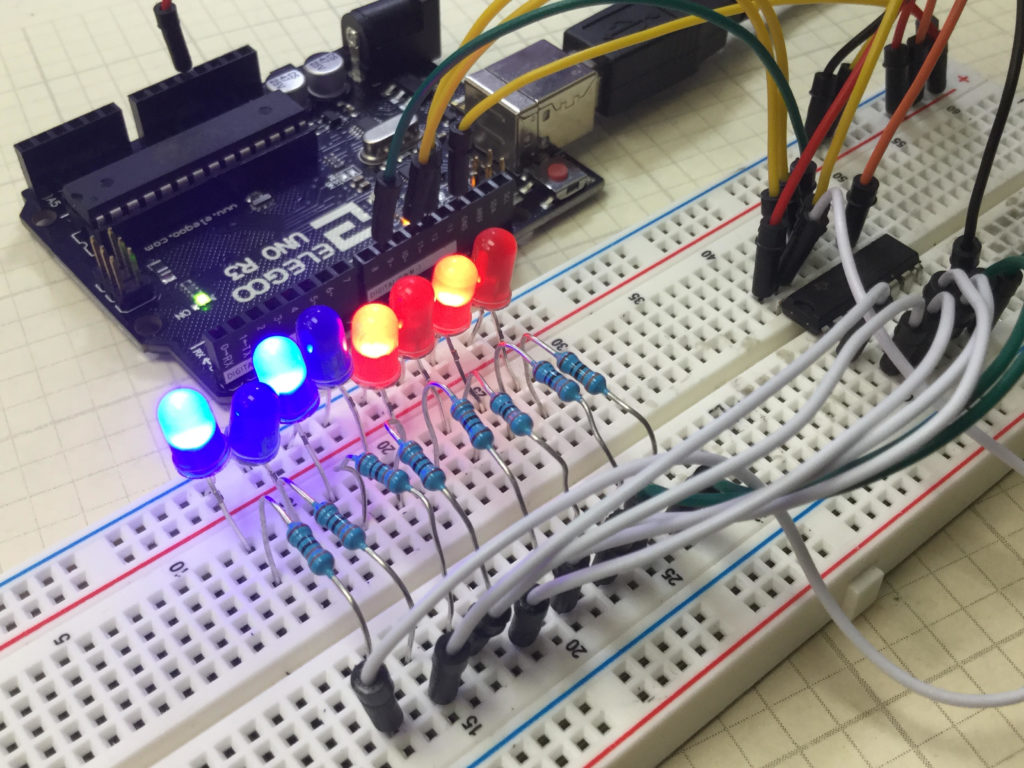
In this Circuit the 74HC595 is independently controlling 8 different LEDs.
In this lesson we show you how to expand the number of LEDs or other devices you can control with the Arduino by incorporating a Serial to Parallel converter. The chip we will be using is the 74HCH595. When connected to just a few pins of the Arduino, data can be sent serially to the chip, and then LEDs can be connected to the output pins of that chip. Hence, you can control 8 LEDs using only 3 digital pins on the Arduino.
This is somewhat of a tedious project, because the circuit has lots of wires, and it must be connected perfectly. We use the following schematic in this project:
This is the schematic we use in this example to control 8 LEDs from the 74HC595 chip.
The video takes you step by step through the entire build and programming.
The code we used in this build is included below:
Arduino
1
2
3
4
5
6
7
8
9
10
11
12
13
14
15
16
17
18
19
20
21
22
23
24
25
26
27
intlatchPin=11;
intclockPin=9;
intdataPin=12;
intdt=250;
byteLED1s=0b10101010;
byteLED2s=0b01010101;
voidsetup(){
// put your setup code here, to run once:
Serial.begin(9600);
pinMode(latchPin,OUTPUT);
pinMode(dataPin,OUTPUT);
pinMode(clockPin,OUTPUT);
}
voidloop(){
// put your main code here, to run repeatedly:
digitalWrite(latchPin,LOW);
shiftOut(dataPin,clockPin,LSBFIRST,LED1s);
digitalWrite(latchPin,HIGH);
delay(dt);
digitalWrite(latchPin,LOW);
shiftOut(dataPin,clockPin,LSBFIRST,LED2s);
digitalWrite(latchPin,HIGH);
delay(dt);
}
An official Arduino Uno R3 is available HERE. In this new series of lessons, I will be using the sensor and other components found in this KIT.
Making The World a Better Place One High Tech Project at a Time. Enjoy!
We use cookies to ensure that we give you the best experience on our website. If you continue to use this site we will assume that you are happy with it.Ok