Category Archives: Arduino

Arduino Tutorial 49: How to Build a Simple Calculator with LCD Display

In this lesson we show you our solution to the assignment in Lesson 48 to build a simple calculator with an LCD Output. The video steps you through the project build step-by-step.

In the project, the following schematic is used.
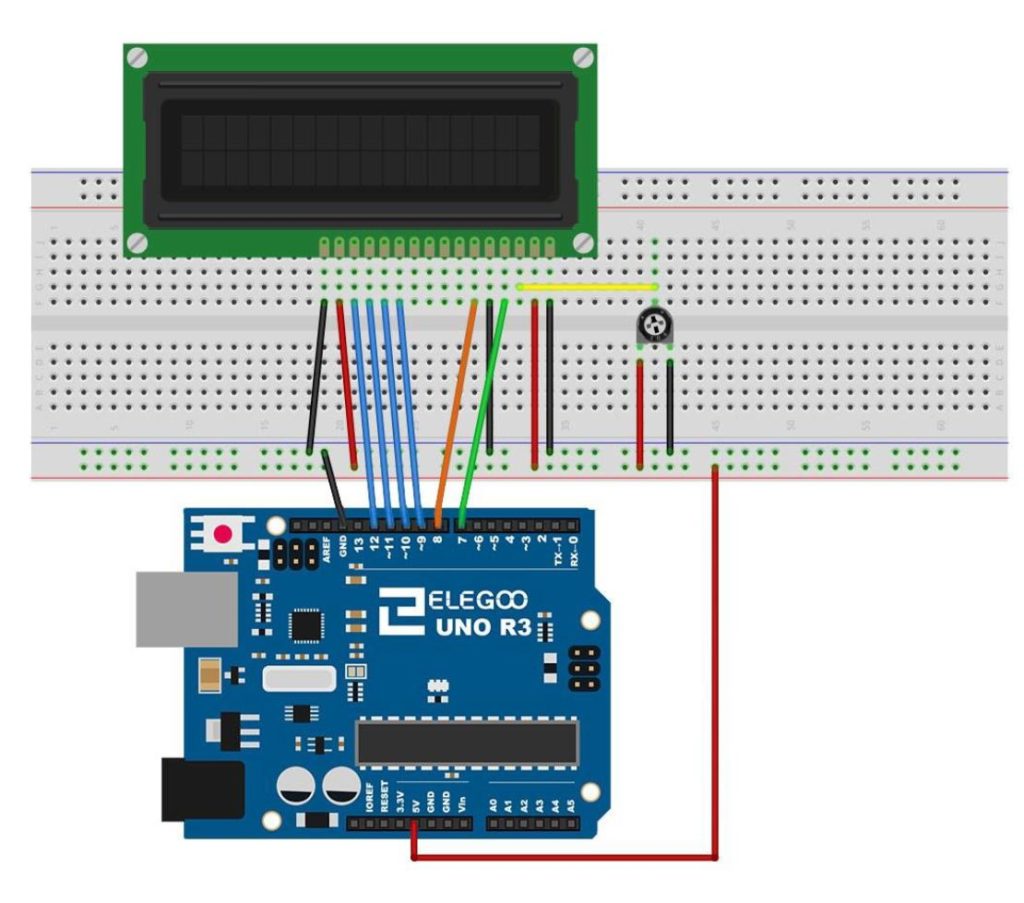
Arduino LCD Schematic
This schematic will allow you to connect the LCD to the Arduino.

An official Arduino Uno R3 is available HERE. In this new series of lessons, I will be using the sensor and other components found in this KIT.

And this is the code developed in the video.


Arduino Tutorial 48: Connecting and Using an LCD Display

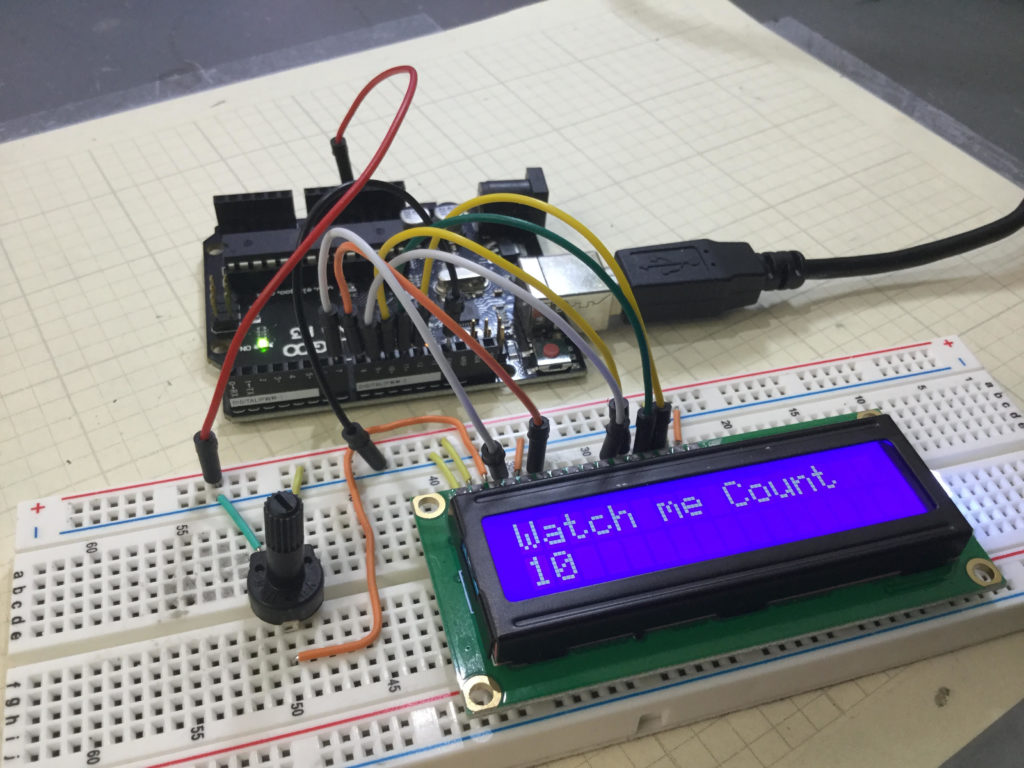
LCD Arduino
LCD connected to an Arduino.

It is often times useful to “un-tether” your arduino from your desktop PC, in order to have a system you can walk around with, and interact with the real world. One of the first steps in making this happen is to have some sort of display on your arduino project. In this lesson, we show you how to connect and program your project to be able to display simple messages on the LCD. This is a schematic diagram of how to connect the arduino to an LCD display. Many LCD displays in fact share this same connection schematic.

Arduino LCD Schematic
This schematic will allow you to connect the LCD to the arduino.

The details are provided in the following video.


Below is the code we developed in the video.

An official Arduino Uno R3 is available HERE. In this new series of lessons, I will be using the sensor and other components found in this KIT.

Arduino Tutorial 47: Binary and Hexadecimal Bit Flipper

In this lesson we explore how to create a Binary or Hexadecimal Bit Flipper. From our earlier lessons you see we can visually represent Hexadecimal or Binary numbers with a series of LED, with an on LED representing a “1” and an off LED representing a “0”. In programming and circuit applications, it is sometimes useful to “flip” or invert the bits. For an 8 bit number, one could do this in a program with 255 IF statements, but there is a simpler way. If you think about it, you can get the flippedByte by simple subtracting the byte from 0xFF, or 0b11111111. If you try some test cases, you can see that this will always work.

Simply stated, flippedByte=0xFF-Byte,

or if you prefer thinking in binary,

flippedByte=0b11111111-Byte

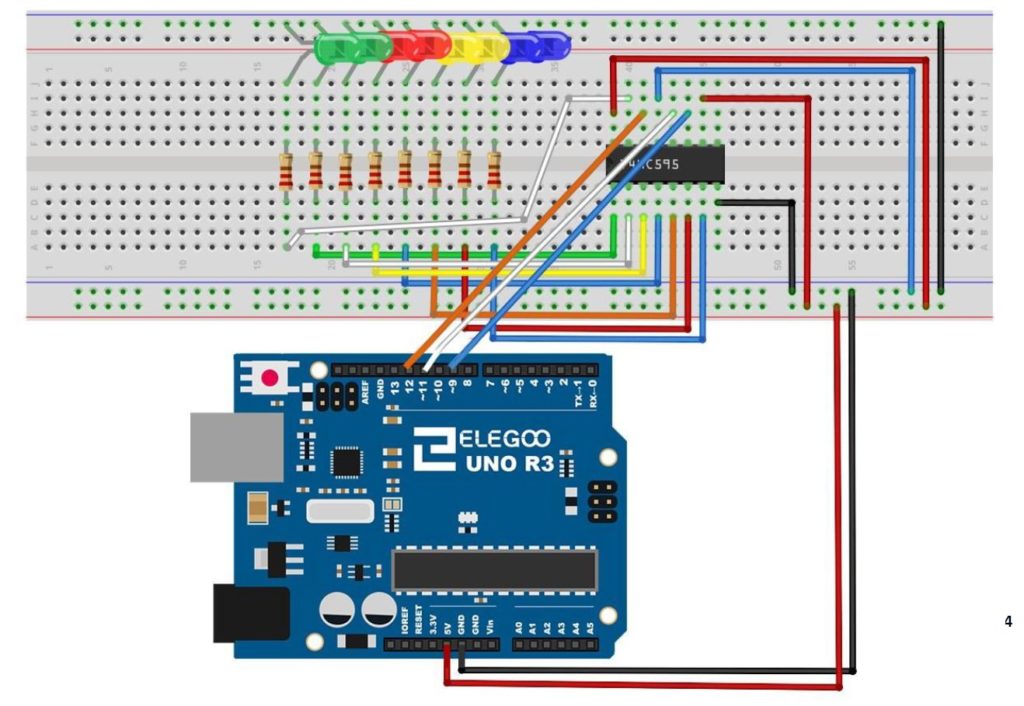
This is the circuit we are using to drive the 8 LED with the 74HX595 chip, and all this was explained in Tutorial 42.

74HC595
This is the schematic we use in this example to control 8 LEDs from the 74HC595 chip.

This is the code which we developed in the video above.

An official Arduino Uno R3 is available HERE. In this new series of lessons, I will be using the sensor and other components found in this KIT.


Arduino Tutorial 46: HOMEWORK- Create a Binary Bit Flipper with the 74HC595

The purpose of this lesson is to assign you homework. Your homework is to create a Bit Flipper. That is, for an 8 bit Binary or Hex number, invert the bits . . . “1” bits should become “0” and “0” bits should become “1”.  For example,

if myByte=00001111

the flipped version of this would be

myByteFlipped=11110000

Similarly if myByte=00000001

myByteFlipped=11111110

You could do this with 255 if statements, but see if you can figure out a better way of doing it, and then demonstrate your results using the circuit we have been using in the last few lessons.

74HC595
This is the schematic we use in this example to control 8 LEDs from the 74HC595 chip.


An official Arduino Uno R3 is available HERE. In this new series of lessons, I will be using the sensor and other components found in this KIT.

9-Axis IMU LESSON 24: How To Build a Self Leveling Platform with Arduino

In this lesson we develop the initial simple code for leveling the platform. We implement the simplest control system, which is to just increment or decrement the servos based on whether the actual position is greater or less than the target position. We increment/decrement by one degree, since this is the smallest allowed change in servo position. Next week we will implement a more sophisticated control system. Below is the arduino code developed in this lesson.