
Hey everyone, welcome back to the AI on the Edge series!
In today’s lesson, we’re taking another big step forward in building truly interactive AI projects that run right on our Raspberry Pi 5. We’re going to give our hardware a voice — literally. You’ll learn how to control the brightness of an LED using simple voice commands like “low”, “medium”, “high”, “on”, and “off”.
This lesson builds directly on the speech-to-text skills we learned earlier. Using the Fusion Hat’s microphone and the excellent STT library, we create a system where you can speak naturally to your Pi and it responds instantly by changing the LED brightness. We also bring in Python threading so the voice listening doesn’t block the main program — which is a critical skill as our projects get more complex.
One of the things I really like about this project is how it shows the power of combining AI with real hardware. You’re not just making the LED turn on and off anymore — you’re giving it smooth, adjustable brightness control using nothing but your voice. It’s a perfect example of the kind of interactive, intelligent edge computing we’re working toward in this class.
By the end of this lesson, you’ll have a solid understanding of how to use voice commands to control hardware, how to manage multiple things happening at the same time with threading, and how to create a much more natural and user-friendly interface for your projects.
This is the kind of thing that makes your Raspberry Pi projects feel alive and responsive. Whether you eventually want to control motors, lights, robots, or entire systems with your voice, the techniques you learn in this lesson will serve as a strong foundation.
So grab your SunFounder Fusion AI Hat, hook up that red LED, and let’s get your Raspberry Pi listening and responding to your voice commands like a proper smart device!
As always, I encourage you to type the code along with me in the video, then play around with it. Try adding more commands, change the LED color, or combine it with other sensors. That’s where the real learning and creativity happens.
I’m really excited to see what you build with this one!
This is the schematic we are using, from LESSON #5.
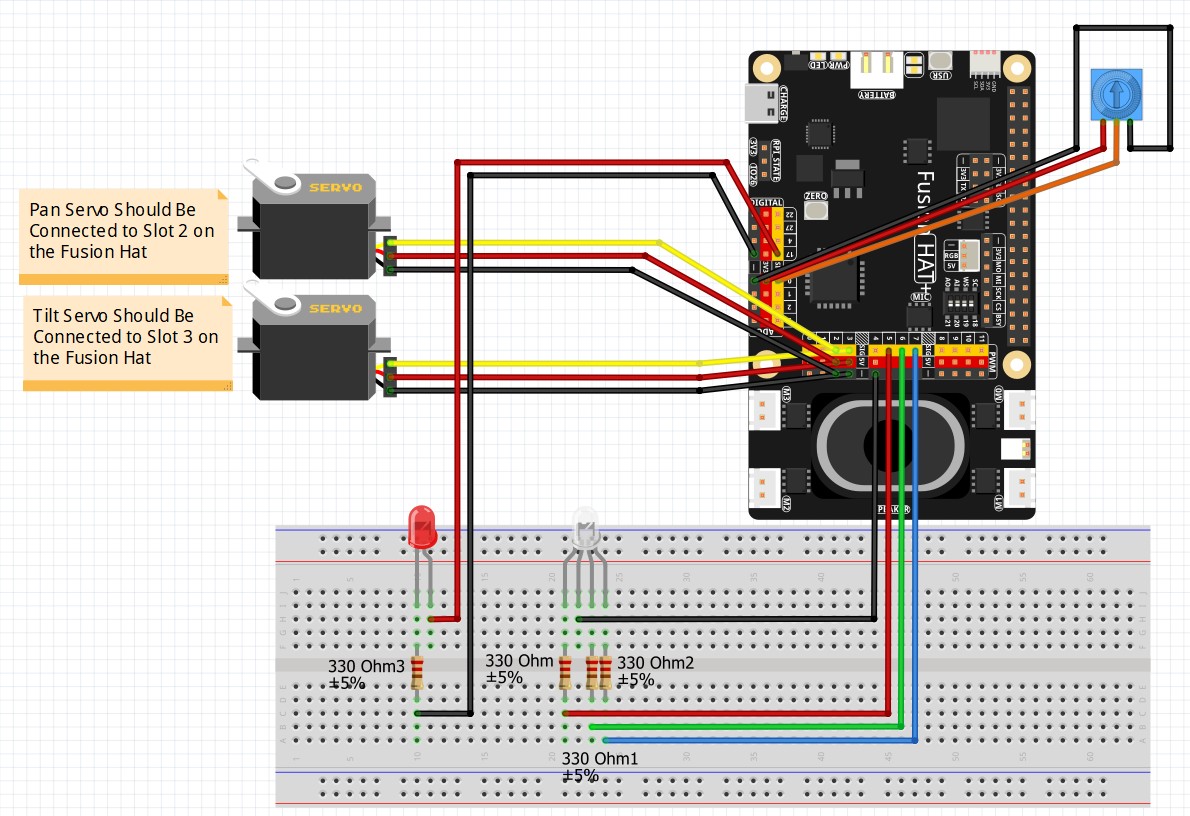
In the video, this is the code we developed:
|
1 2 3 4 5 6 7 8 9 10 11 12 13 14 15 16 17 18 19 20 21 22 23 24 25 26 27 28 29 30 31 32 33 34 35 36 37 38 39 40 41 42 43 44 45 46 47 48 49 50 51 52 53 54 55 56 57 58 59 60 61 62 63 64 65 66 67 68 69 70 |
# ==================================================================== # DISCLAIMER: # This code is provided as-is for educational and experimental # purposes only. The author makes no representations or warranties of # any kind concerning the safety, suitability, or accuracy of this # code. Use at your own risk. The author assumes no liability for any # damages, system failures, security breaches, or network issues # resulting from the use or implementation of this script. # ==================================================================== from fusion_hat.pwm import PWM from fusion_hat.stt import STT import threading from queue import Queue from time import sleep redPin = 5 redLED = PWM(redPin) redLED.freq(1000) stt = STT(language ="en-us") brightness = "off" bNumb = 0 running = True brightQ = Queue() def blinkBright(): print("Input Thread is Running") global running while running: print("What Brightness: (off, low, medium, high, on or quit: )") cmd = stt.listen(stream = False) cmd = cmd.strip() print(cmd) if cmd == "quit": running = False break brightQ.put(cmd) print("Thread is Terminated") brightThread = threading.Thread(target = blinkBright, daemon = True) brightThread.start() print("Main Program Has Started") try: while running: if brightQ.empty() == False: brightness = brightQ.get() if brightness == "quit": break if brightness == "off": bNumb = 0 if brightness == "low" or brightness == "whoa": bNumb = 8 if brightness == "medium": bNumb = 25 if brightness == "high" or brightness == "hi": bNumb = 60 if brightness == "on": bNumb = 100 redLED.pulse_width_percent(bNumb) redLED.pulse_width_percent(0) redLED.enable(False) print("LED Released") print("Program is Terminated") except KeyboardInterrupt: running = False redLED.pulse_width_percent(0) redLED.enable(False) print("LED Released") print("Program Terminated") |